Smart SOP Generator for Desktop
The Smart SOP Generator for Desktop is a standalone Windows application that extends IT Glue's browser-based SOP Generator to your entire desktop. Record clicks, keystrokes, and screenshots across any application, from remote management tools and ERP systems to custom line-of-business software, and automatically generate a polished, editable SOP document that saves directly to IT Glue.
Availability
- Requires an Enterprise plan.
- Available to IT Glue users with the role of Creator and above.
- SOP Generator for Desktop can be downloaded and installed by anyone, but login requires a valid IT Glue account meeting the above requirements.
- Windows only in V1. macOS support is planned for V2.
NOTE The link to download the installer lives inside of the IT Glue web application.
Installing the SOP Generator for Desktop
To get started, download the app directly from IT Glue. You'll find the download link in the Account dropdown menu as well as on the in-app banner. Click the link and the installer will download to your device. No administrator access is needed to install.
TIP You don't need to keep the app running in the background. Just open it when you're ready to capture a process.
System requirements
The SOP Generator for Desktop runs as an Electron-based application alongside other desktop software during capture sessions. Meeting or exceeding the recommended specifications will give you the best performance, especially when capturing complex, multiple application workflows.
| Component | Requirements |
|---|---|
| Operating System | Recommended: Windows 11, any edition or version. Minimum: Windows 10 |
| Processor (CPU) | 64-bit (x64). Arm devices are not supported. |
| Memory (RAM) | Recommended: 8 GB. The app uses about 200 MB when idle and peaked at about 1 GB during a 15-step recording on a 1920x1080 screen. |
| Storage | About 1 GB free. The installed app is about 400 MB, and the rest is room for recordings and updates. |
| Display Resolution | Any resolution. Higher resolutions use more memory per step. |
| Display Scale | 100% |
| Network | HTTPS access to the IT Glue tenant |
NOTE Display scale and resolution affect the quality of captured screenshots and the accuracy of click annotations. Using a scale setting above 100% (e.g. 125% or 150%) or a non-standard resolution may reduce screenshot clarity in your generated SOPs. To check or update these settings on Windows, right-click your desktop, select Display Settings, and adjust Scale and Display resolution.
TIP If you notice slowdowns during capture, antivirus software scanning the app's temporary files is a common cause. Whitelisting the SOP Generator for Desktop from real-time scanning typically resolves this. Contact your IT administrator if you need help adjusting antivirus exclusions.
Logging in
Once the download is complete, open the installer and follow the on-screen steps, including accepting the terms and conditions. When the SOP Generator for Desktop has been installed successfully, the login screen will appear automatically.
Use your regular IT Glue credentials to sign in. You will be prompted for your MFA as it's enabled on your account. If your account meets the plan and role requirements, you'll be taken straight to the main widget and can start capturing right away. If not, you'll see a message explaining why access is restricted.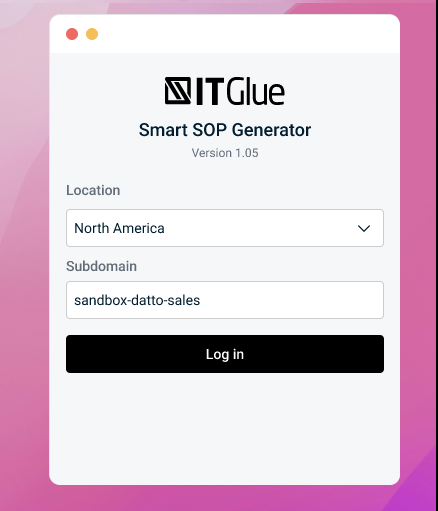
NOTE The SOP Generator for Desktop maintains its own independent session. Logging in to the desktop app does not log you in to the IT Glue web app, and vice versa.
IMPORTANT Only IT Glue accounts are supported for login. KaseyaOne login without an active IT Glue account is not supported.
Starting a capture session
After logging in, you will see the main SOP Generator widget, a compact floating panel on your desktop.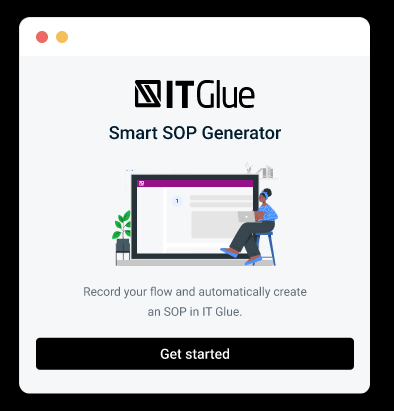
Click Start Capture in the widget.
If multiple windows or monitors are active, you will be prompted to select the window or application you want to record. You can choose:
- A specific application window (e.g., your RMM tool, a browser, an ERP system).
- The entire screen, to capture all activity across all applications.
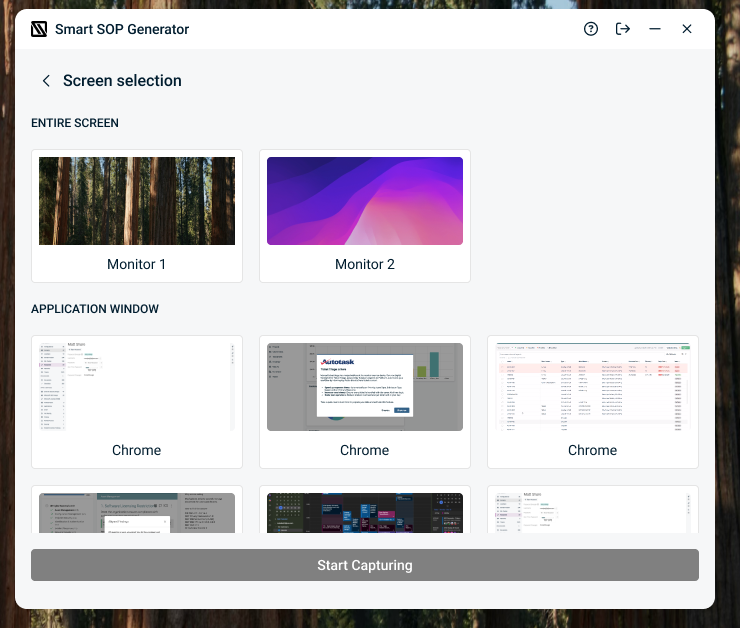
Once you confirm your selection, the recording control panel appears on-screen and the capture session begins. You can change the application window or change from specific application to full screen anytime during the capture.
During a capture session
While recording is active, the SOP Generator tracks your interactions and builds the procedure in real time.
What is captured
- Clicks: Every mouse click is recorded and generates a step with a screenshot.
- Keystrokes: Common keyboard shortcuts and commands are captured and generate a step with the screenshot.
- Screenshots: Automatically taken at each captured action, and available on demand via the Manual Screenshot button.
IMPORTANT The SOP Generator does not automatically redact sensitive information. Always review your captured steps and use the Blur tool in the Preview/Edit window to obscure any sensitive content before saving or exporting.
Control panel options
The floating control panel gives you full control over the session:
- Pause: Temporarily suspend recording. Actions taken while paused are not captured.
- Manual Screenshot: Capture a screenshot at any moment, even without clicking or typing. Useful for capturing UI states.
- Resume: Continue recording after a pause.
- Finish and Review: End the session and open the Preview/Edit window to review, edit, and save your SOP.
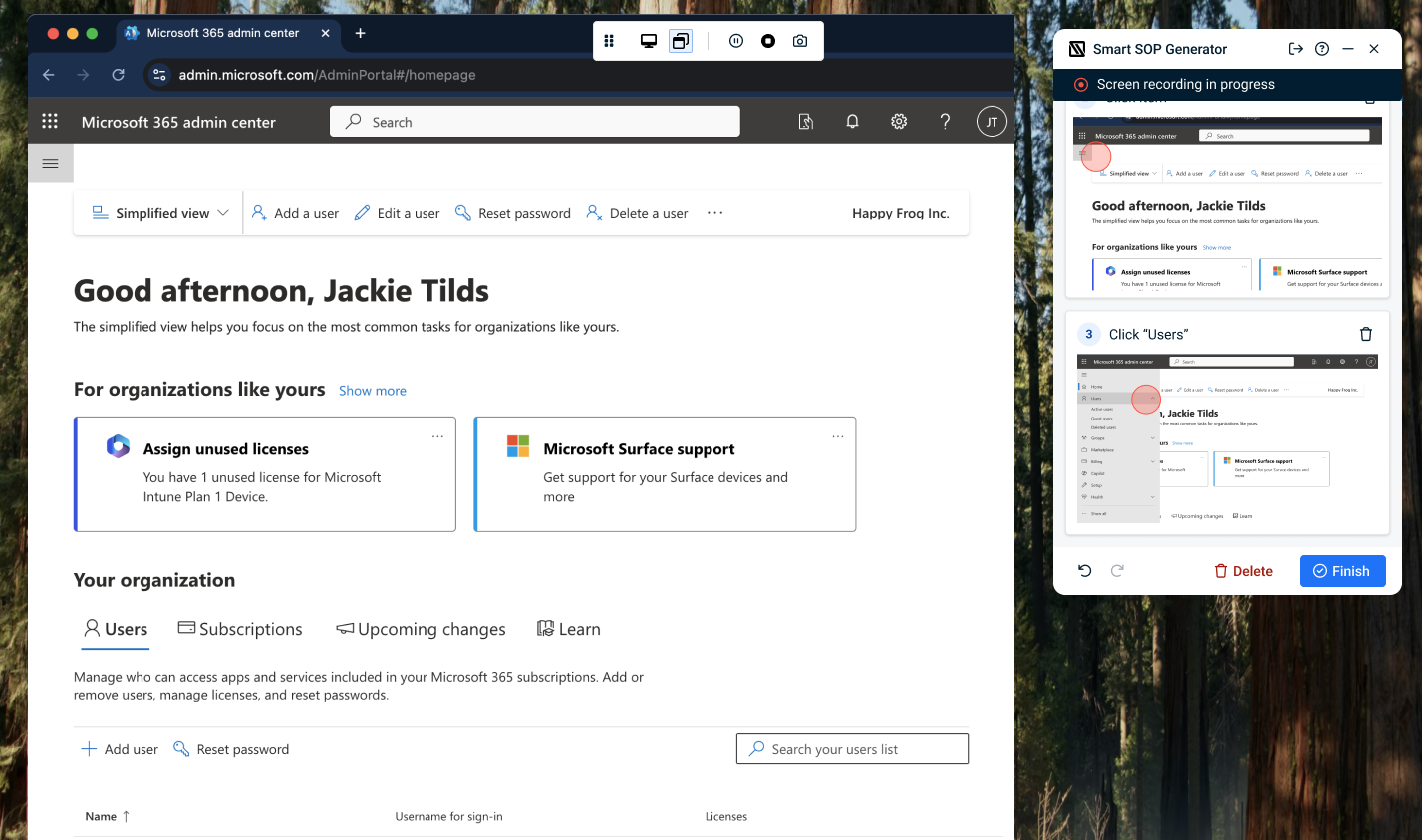
The SOP Generator widget during capture
The SOP Generator widget that displays captured steps can be minimized to the system tray during a recording session. This prevents the widget itself from appearing in full-screen captures. You can expand it at any time to review steps captured so far, then collapse it again before continuing.
Finishing and reviewing your SOP
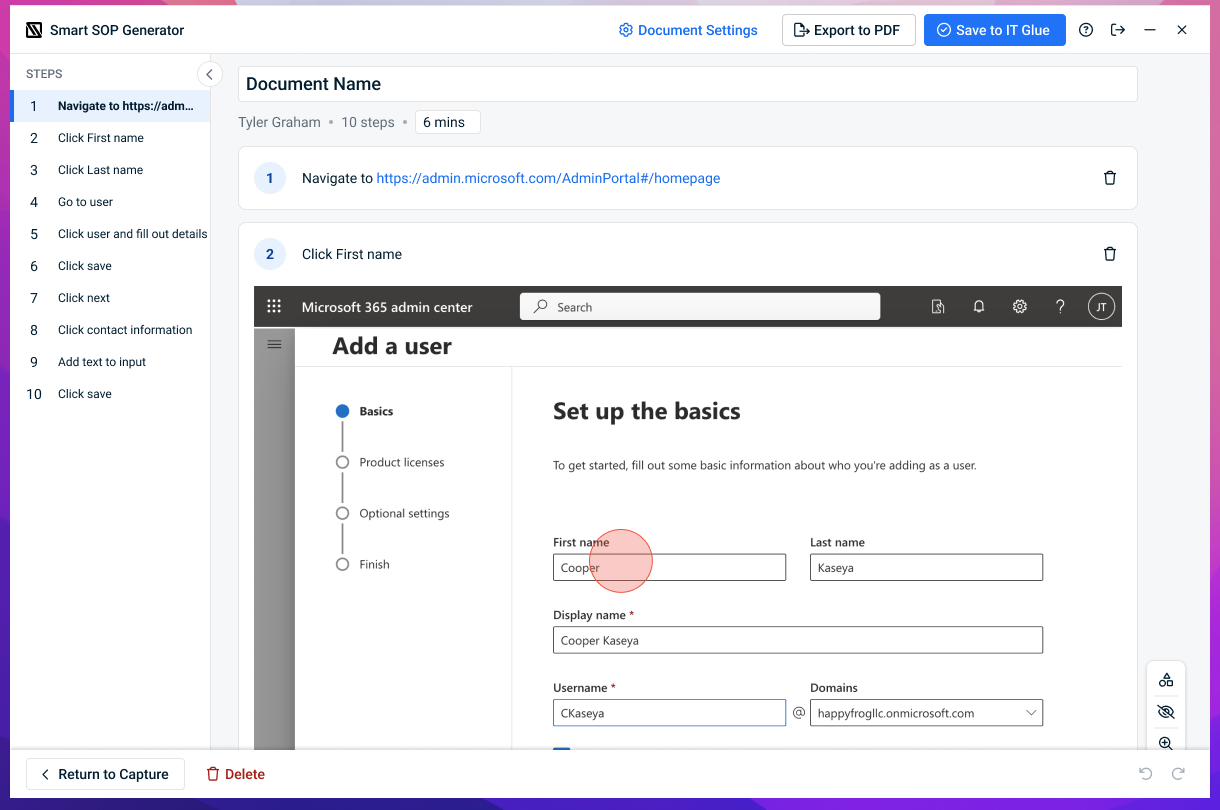
When you click Finish and Review, the control panel closes and the full Preview/Edit window opens. This is where you refine your SOP before saving or exporting it.
Preview and Edit window layout
- Left panel: Table of Contents: A list of all captured steps, shown as clickable step numbers. Click any step to automatically scroll the main view to that step.
- Main panel: Step Editor: The full content of each step, including the screenshot, auto-generated description, and any annotations.
Editing tools
The same powerful editing tools available in the web version are available in the desktop Preview/Edit window:
- Annotate: Add shapes, arrows, and text labels to screenshots to highlight key areas.
- Blur: Redact sensitive information in screenshots. Only the blurred version is saved, the original is never stored.
- Zoom and Pan: Navigate large screenshots with precision before annotating or blurring.
- Hotspot Controls: Show, hide, or reposition the click hotspot indicator on each screenshot.
- Step Reordering: Drag and drop steps to rearrange them into your preferred sequence.
- Delete Steps: Remove any step that is not relevant to the procedure, such as accidental clicks.
NOTE To protect IT Glue servers, all images are automatically compressed to a maximum of 1 MB before upload. This happens in the background and requires no action from you.
Exporting and saving your SOP
Exporting to PDF
In the Preview/Edit window, click Export to PDF.
The PDF is generated automatically and downloaded to your device. The Preview/Edit window remains open so you can also save the SOP to IT Glue.
Saving to IT Glue
- Enter a name for your document. Follow your organization's naming conventions so the document is easy to find later.
- Click Save to IT Glue.
- Select the Organization this SOP belongs to.
- Optionally, select a folder to save the document into, or accept the default SOP Generator folder.
- Click Save. The SOP will open automatically in IT Glue in your default browser, where you can review, further edit, and Publish it to make it accessible to your team.
TIP You can export to PDF and save to IT Glue in the same session. These actions are independent. Exporting does not close or save the document, and saving does not trigger a PDF download.
Activity log tracking
All documents created via the SOP Generator for Desktop are recorded in IT Glue's activity logs. Each log entry includes:
- Name of the user who created the document.
- Timestamp of when the document was created.
- Direct link to the document in IT Glue.
- Organization name the document was saved to.
- PDF: Noted in the log entry if the SOP was exported to PDF.
To view activity logs, navigate to Admin > Activity Log in IT Glue.
Editing your saved document in IT Glue
Once saved to IT Glue, the SOP document behaves like any other IT Glue document and can be edited at any time using the standard document editor. For more information, refer to A quick tour of editing.


