Change your IT Glue email address
Overview
This article outlines how you can update your email address in IT Glue. The steps vary depending on whether or not Single Sign-On (SSO) is enabled for your IT Glue instance, including environments where Kaseya One SSO is in use.
Prerequisites
- Access to IT Glue.
- IT Glue native credentials.
- You must have a MFA device (if MFA is enabled).
- If SSO is enabled, you must be added to the SSO Exception (Override) list by an Administrator.
Instructions
IMPORTANT When SAML SSO is enabled, IT Glue does not allow users to change their email address while logged in through SSO. To update the email address you must log in using the SSO bypass link, or an Administrator must temporarily disable SSO (not recommended unless necessary).
Changing an email address with SSO (SAML) enabled
- Obtain the SSO bypass link.
- Contact your IT administrator to be added to the SSO Exception list.
- The administrator will provide an IT Glue SSO bypass login URL.
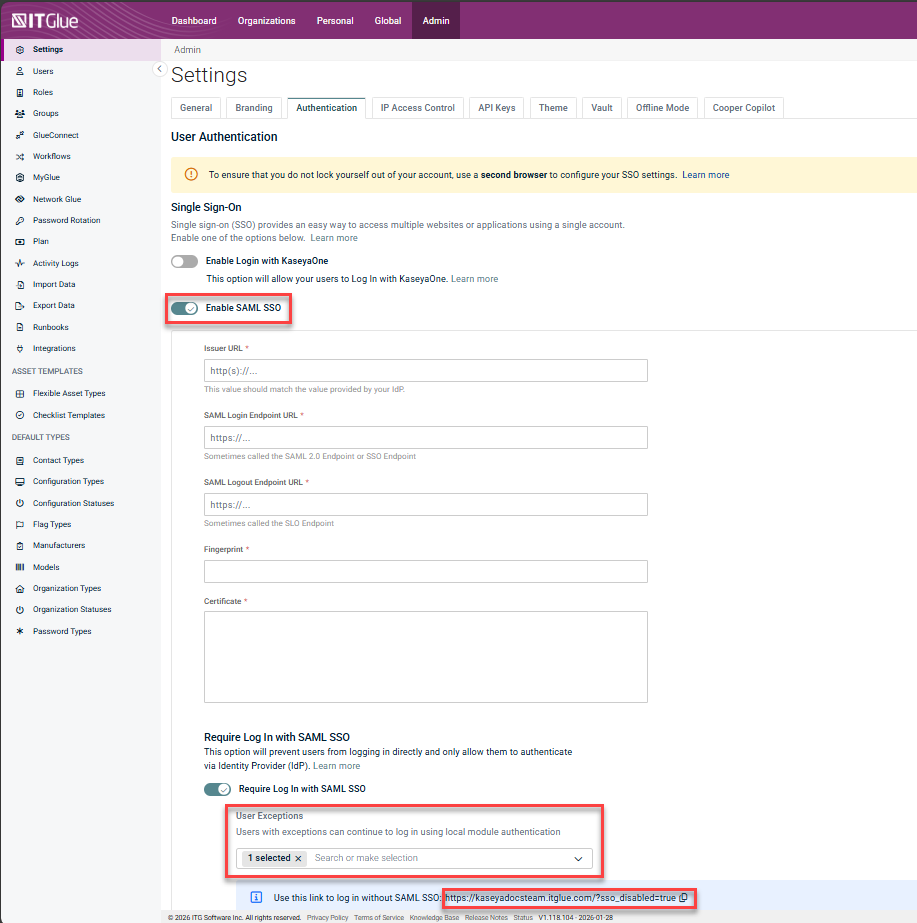
- Log in using native IT Glue credentials.
- Open the SSO bypass URL provided by your administrator.
- Enter your IT Glue username and password.
- Complete MFA authentication if prompted.
- Open the SSO bypass URL provided by your administrator.
- Navigate to Profile Settings.
- Click your profile icon in the top-right corner.
- Select My Settings.
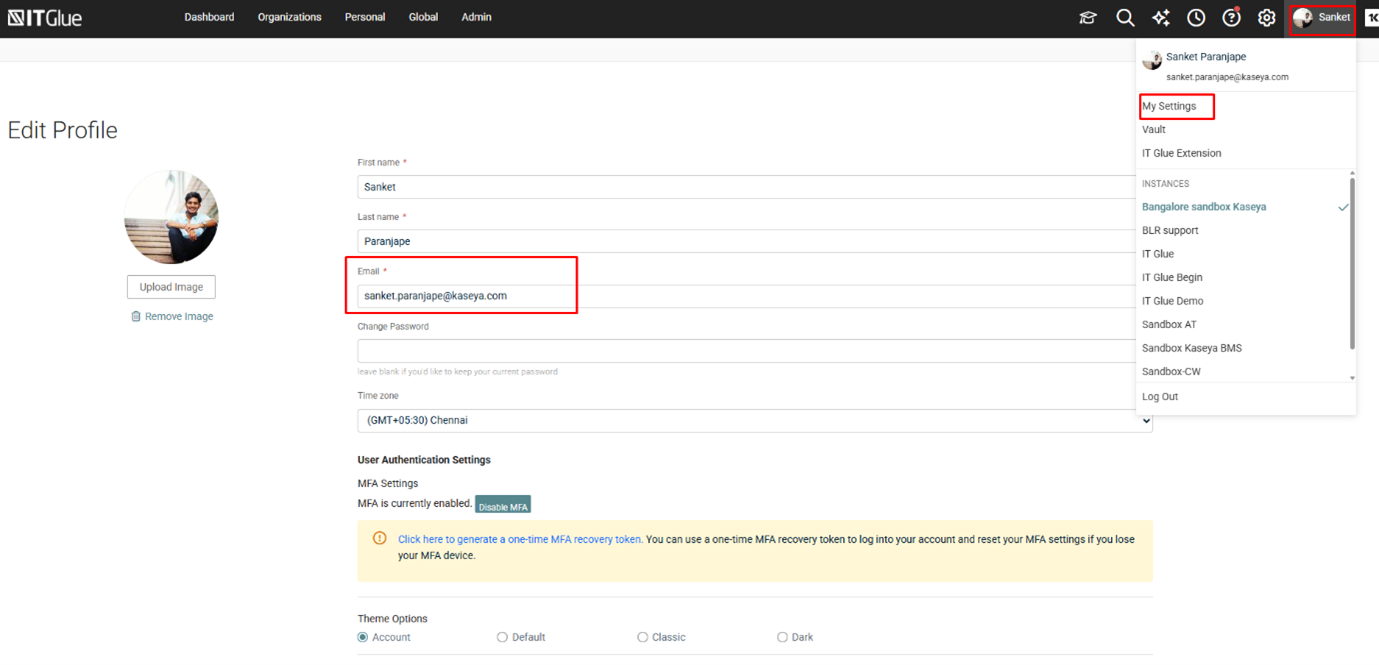
- Update email address.
- Locate the Email field.
- Enter your new email address.
- Click Save.
- Confirm the change.
- Verify that the updated email address is displayed in your profile.
- Verify that the updated email address is displayed in your profile.
NOTE After the update, ensure your new email address matches the email configured in your Identity Provider (IdP).
Changing an email address with SSO (SAML) not enabled
If SSO is not enabled on your IT Glue instance, you can update your email address at any time without additional steps.
-
Log in to IT Glue
- Access IT Glue using the standard login page.
- Authenticate using your username, password, and MFA (if enabled).
- Click your profile icon in the top-right corner.
- Select My Settings.
-
Update Email Address
- Enter the new email address in the Email field.
- Click Save.
-
Verify Update
- Confirm the new email address is correctly displayed.
Troubleshooting
Unable to change email address
- Ensure you are not logged in via SSO when SSO is enabled.
- Confirm you are using the SSO bypass link.
- Verify that your account is added to the SSO Exception list.
Login issues after email change
- Confirm the updated email matches the email configured in your IdP.
- Contact your IT administrator for assistance.


