Adding and removing password folder security
Introduction
These steps will help you manage security permissions for passwords contained in a password folder. Password folder security allows you to protect your passwords while providing access to a select group of users.
Prerequisites
- This feature is available to anyone with a Creator or above user role.
- Before you begin, you'll want to make sure that you've organized your passwords in folders. Refer to our Passwords and Bulk Security for Passwords KB articles for more information.
Instructions
Adding folder security to an existing password folder
When you set restrictions on who can access passwords in a password folder, these permissions will perform a one-time cascade downwards from the higher level folder to passwords and subfolders inside the folder unless you (the user who is modifying the security) do not have access to more heavily restricted passwords and subfolders. Of the ones you can access, folder security will be combined with any existing password folder or subfolder security restrictions.
- Navigate to Organizations > Passwords.
- In the password list view, click the checkbox next to the password folder. This displays an arrow on the Select All button.
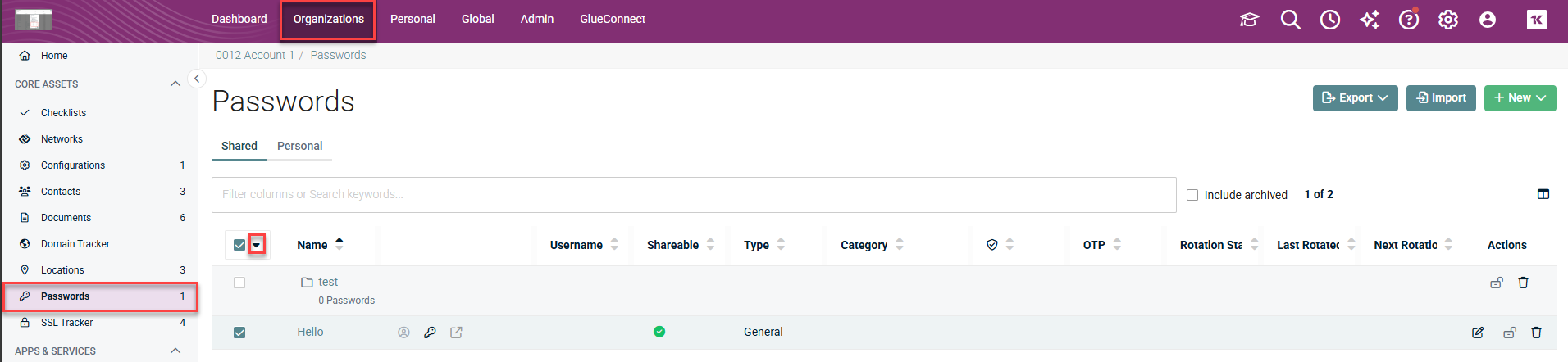
- Click the arrow to access the various actions. Click Security to open the security dialogue box.
- In the dialogue box, select the Specific groups and/or users can access this Folder option. Select the desired groups and users from the drop downs.
IMPORTANT The security restrictions you set will cascade down to all subfolders and general passwords that you have access to. Parent folder permissions will be appended to the child assets in the folder. Also, note that embedded passwords will be unaffected by these changes as they will retain the security settings of the asset they are embedded into.
- Click Save to apply your changes.
After you make this change, only the specified users and groups can see it in the password list view and in search results. When passwords or subfolders are created inside the password folder, they are automatically given the same security restrictions as the higher level folder. Any passwords that already had security restrictions on them will now inherit the restrictions you just set as shown in the table below.
NOTE Existing security for embedded passwords will not be changed.
| Password Setting | Password Folder setting | Password Asset Result |
|---|---|---|
|
Group A |
User B |
Group A, User B |
|
Group A |
Group B |
Group A, Group B |
|
Group A, User B |
User B, User C |
Group A, User B, User C |
|
Group A, User B |
User B |
Group A, User B |
|
Group A |
Unrestricted |
Unrestricted |
|
Unrestricted |
Group A |
Group A |
Understanding password folder security inheritance for passwords and folders
Review the below inheritance cases for newly created IT Glue passwords, MyGlue passwords, and password subfolders, respectively.
Case 1 - New IT Glue passwords created inside a password folder
- You are restricted from changing the security permissions of any newly created password that already has parent folder security. A restriction message will appear on the password creation page in IT Glue. Instead, you will need to edit the permissions of the parent folder directly.
Restriction message on the IT Glue Create Password page:

Case 2 - New MyGlue passwords created in an account that has MyGlue default security settings
- You are restricted from changing the security permissions of any newly created password that already has MyGlue default permissions set on the account level. A restriction message will appear on the password creation page in MyGlue. Instead, on the Edit MyGlue Account screen, navigate toAdmin > MyGlue > Action > Edit and change the security settings for the entire MyGlue account.
Restriction message on the MyGlue Create Password page:
Case 3 - New password folders and subfolders
- Newly created password subfolders inherit the security of their parent folder.
- In IT Glue, folders created in the Passwords list view are shared with all IT Glue users by default.
- In MyGlue, folders created in the Passwords list view are shared with all MyGlue users by default.
Review the below inheritance cases for existing IT Glue and MyGlue passwords and password subfolders, respectively.
Case 1 - Existing IT Glue passwords and subfolders moved into a password folder
- When moving passwords or subfolders into a password folder (either by clicking Move or via drag and drop), you are prompted to choose how security permissions should be handled:
- Use folder permissions: Applies the destination folder's access permissions to the moved item (and cascades to all nested child folders and passwords).
- Keep current permissions: Retains the item's original security permissions.
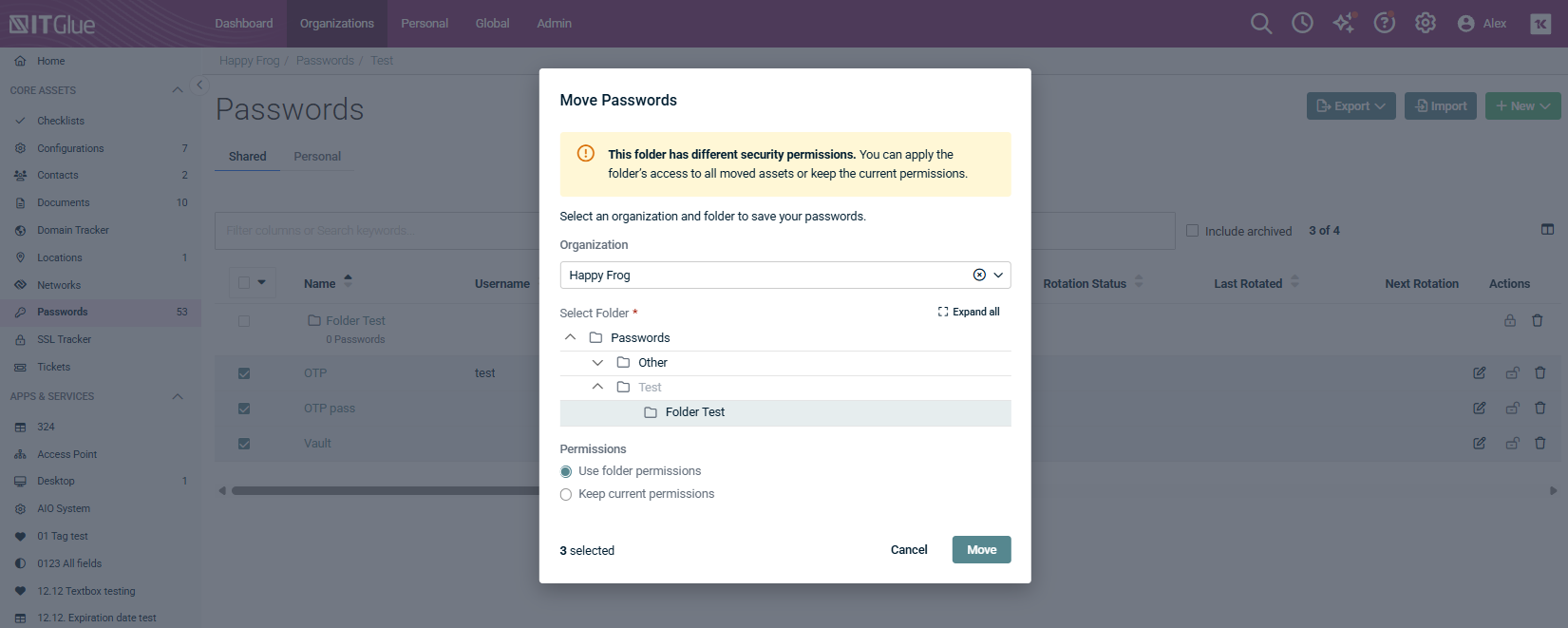
NOTE If you move items from the Root directory into a folder, a banner will notify you: “This folder may have different security permissions.” If you move an item back to the Root level, existing permissions are retained automatically, and folder inheritance is disabled.
Existing MyGlue passwords moved into a password folder
If the folder permissions were updated before the new password was moved into the folder, the password permissions remain unchanged. In order to apply a parent folder's restricted permissions to the password newly inside it, you must undo or overwrite the restricted permissions on the parent folder (e.g., by selecting "All Users..." and saving changes) and then set the desired restricted permissions.
Case 2 - Existing MyGlue subfolders moved into a password folder
- If the parent folder is unrestricted and the existing subfolder is restricted, the security of the subfolder remains unchanged.
Case 3 - Existing MyGlue password subfolders moved into a password folder
- If the parent folder is unrestricted and the existing password subfolder is restricted, the security of the subfolder remains unchanged.
Sharing passwords inside a password folder
Next, you can share passwords inside the password folder with others outside of the designated core group of users, if desired.
- Locate the password you want to share and click the Edit (pencil) icon.
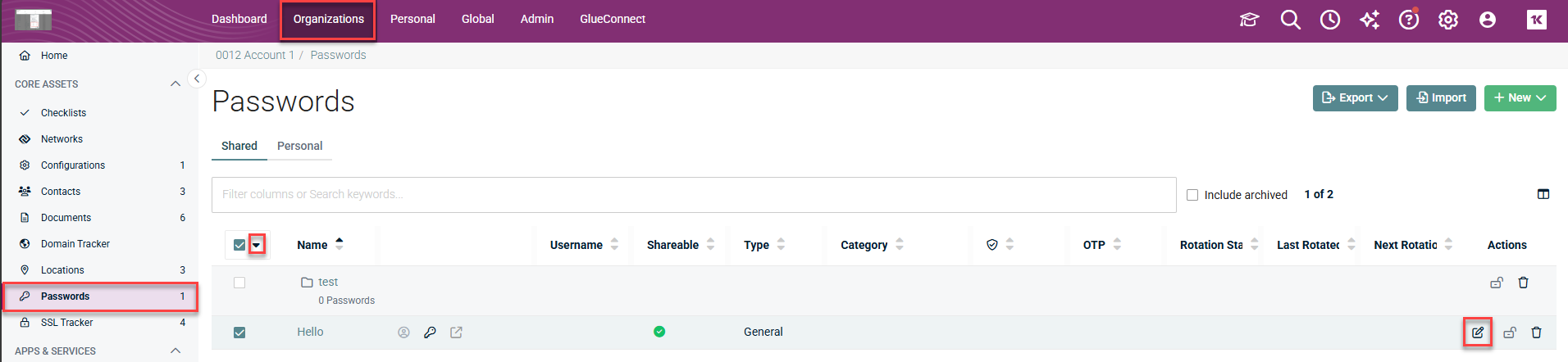
- On the right side of the screen, expand the Security section and select the Specific groups and/or users can access this Document option. Select the desired groups and users from the drop-downs.

- Click Save.
After this change is made, the password will be searchable by the chosen groups and users. They can also open the password if it's linked to. This includes any @relate links that are created from other documents.
Removing folder security from a password folder
- In the password list view, click the checkbox next to the password folder you want to remove security from. This displays an arrow on the Select All button.
- Click the arrow to access the various actions. Click Security to open the security dialogue box.
- In the dialogue box, select the All IT Glue users with access to [Organization name] can access this Folder option.
IMPORTANT This change will cascade down to all subfolders and passwords that you have access to. This may erase security on sensitive passwords.
- Click Save to apply your changes.
After you save this change, any restrictions on that password folder and its contents are removed.
NOTE If you then apply specific permissions to the folder, any child assets which previously had specific permissions assigned to them will inherit the folder's new permissions, as well as have their previous specific permissions reinstated. As a workaround, navigate into a folder, select all passwords and do a bulk security update. This will set permissions for all passwords, without appending any additional ones.
Common Questions
Is there a folder owner?
- No, there is no folder owner. Members of the restricted folder with an Editor role or above can share the folder with more people and even delete it. Anyone with a Creator role can also change who can access it but is prevented from deleting it.
What happens when I move passwords into a password folder?
- When moving IT Glue passwords into a folder (via the Move action or drag and drop), a modal allows you to choose between:
- Use folder permissions: Overwrites the password's permissions with the target folder's access settings.
- Keep current permissions: Retains the password's existing security permissions.
What happens when I move an entire password folder?
When moving a password folder into another folder, the Move modal will ask if you want to apply the destination folder's access to all moved assets or keep their current permissions. Choosing to apply folder access will cascade permissions to all subfolders and passwords within that folder.
What happens when I copy a password folder?
- The copy of the password folder has the exact same security restrictions as the original folder.
Can I view security permission updates in the IT Glue activity log?
- Yes, you can. When there is an update to security settings of a password folder, a new activity log entry is created called “Action - Security permissions updated”. However, there is no activity log entry when there is an update to a password as a result of permissions cascading down from the password folder.
What happens when I restore a password folder?
- The restored password folder has the same security restrictions that were applied at the point in time when the folder was deleted.
Do exports affect any security restrictions I have set on a password folder?
- No, the restrictions are not affected and there will be no changes to the folder security.


