Password drawer
The password drawer is a slide-out panel in IT Glue that displays password details directly from the Passwords list without navigating away from the page. When you select a password record, the drawer opens on the right side of the screen so you can review and interact with password information while keeping your position in the list.
Key capabilities
- In-context password review: View full password details, including username, password, one-time password (OTP), URL, and notes, without opening the full asset page.
- Live drawer updates: Select a different password in the list to update the drawer without a page reload or losing your place.
- Password sharing and rotation: Share passwords and initiate password rotation directly from the drawer, subject to your role permissions.
- Supporting information: Browse attachments, related items, AI, revisions, and security details from a dedicated tab in the drawer.
- Flexible enable or disable controls: Administrators control the default drawer state account-wide; individual users can override that default in their personal settings.
How it works
When you click a password row in the Passwords list, IT Glue opens the asset drawer on the right side of the screen. The drawer displays the password name and category at the top, followed by two tabs: Details and Supporting information. The Details tab shows the same fields as the full password asset page. The Supporting information tab provides access to attachments, related items, AI, revisions, and security information. The drawer stays open as you move through the list and closes only when you navigate to another page or explicitly close it. Use View full page or Edit at the bottom of the drawer to open the complete password asset page.
The drawer experience is controlled by an Enable Side Panel toggle available at two levels. An Administrator sets a global default under Admin > Settings > Theme tab. Individual users can override that default under User menu > My Settings. Once a user changes their personal toggle, that preference always takes precedence over the account-level setting and persists across sessions and organizations.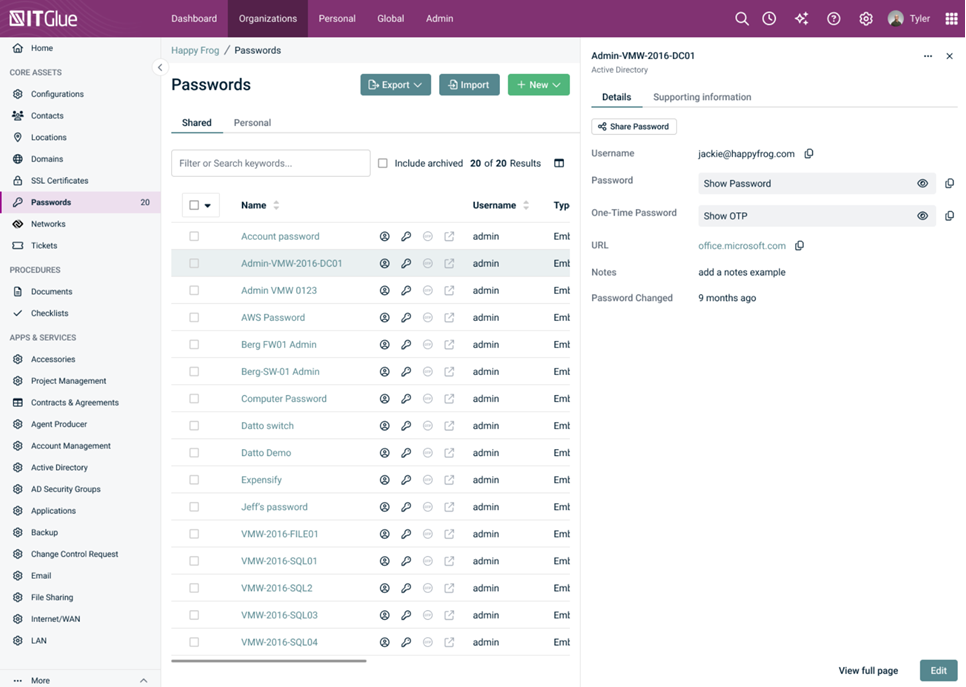
Enabling and disabling the password drawer
Control whether the password drawer is active at the account level or for your personal account. The global setting applies to all users by default; a personal override takes precedence once set.
Before you begin
To change the global setting, you must have an Administrator role in IT Glue. Any user with a Lite role or higher can change their personal setting. Users without password access can see the Enable Side Panel toggle in My Settings but cannot activate it.
Procedure
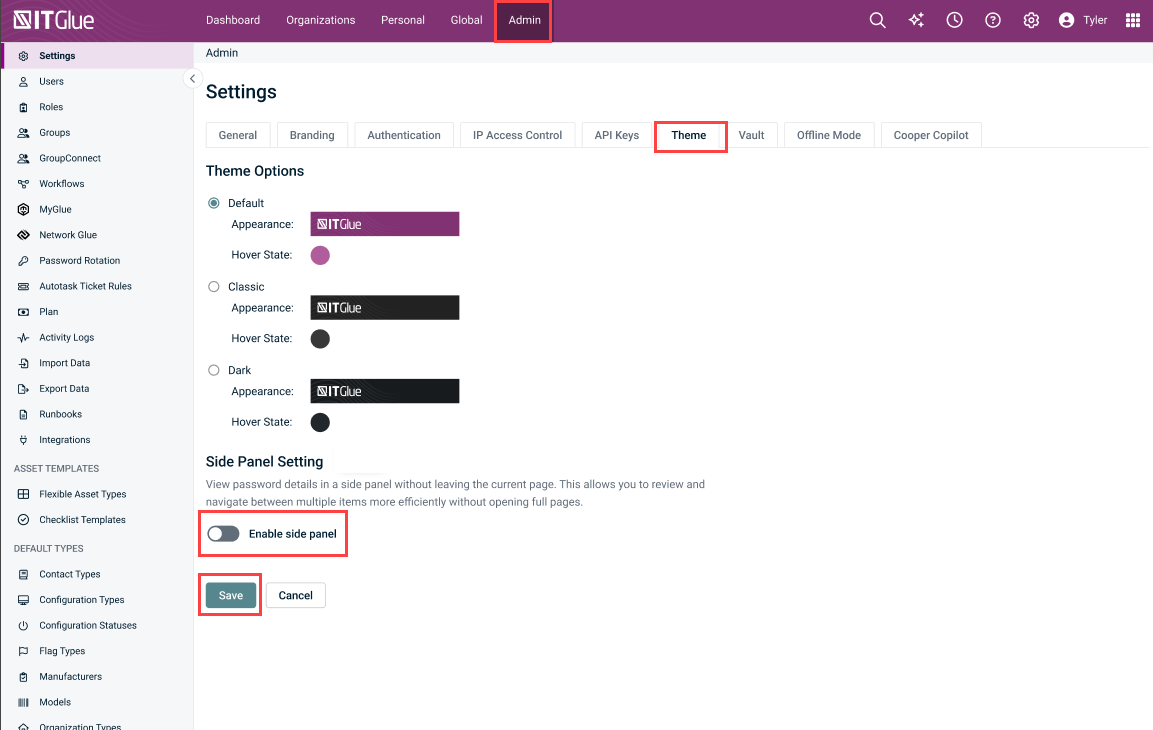
To change the global account setting (Administrator):
- Click Admin in the navigation menu.
- Click Settings.
- Click the Theme tab.
- Select or clear the Enable Side Panel toggle to enable or disable the drawer for all users by default.
- Save your changes.
To change your personal setting:
- Click your User menu in the upper-right corner.
- Click My Settings.
- Select or clear the Enable Side Panel toggle to override the global setting with your personal preference.
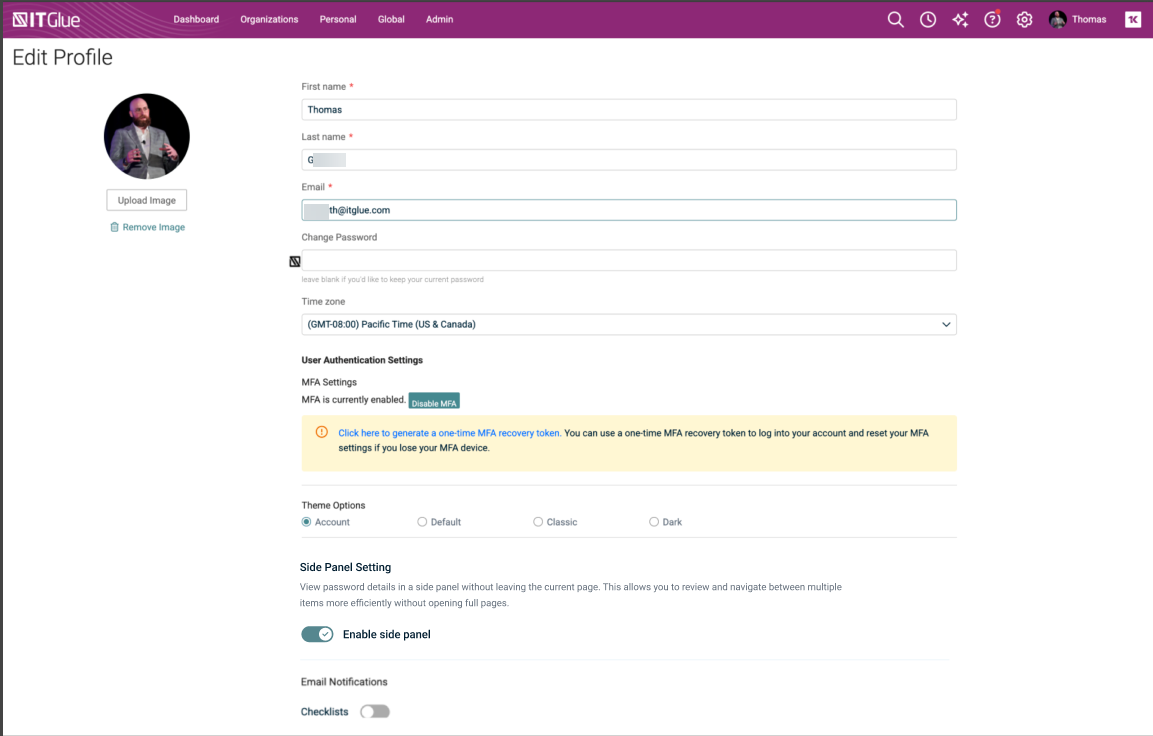
NOTE If you do not have password access, the Enable Side Panel toggle in My Settings is visible but disabled and cannot be activated.
Result
The setting takes effect immediately. If you set a personal preference, that preference persists across sessions and organizations and always overrides the global account setting. If you have never changed your personal toggle, the global Admin setting applies. If neither setting has been changed, the drawer is enabled by default.
NOTE The table below summarizes how the global and personal settings interact.
| Admin setting | User setting | Effective result |
|---|---|---|
| ON (default) | Not set | Drawer enabled (Admin default applies) |
| OFF | Not set | Drawer disabled (Admin setting applies) |
| OFF | Explicitly set to ON | Drawer enabled (user override wins) |
| ON | Explicitly set to OFF | Drawer disabled (user override wins) |
Opening a password in the drawer
Open the asset drawer to review password details without leaving the Passwords list.
Before you begin
Confirm the following before opening the drawer:
- Your IT Glue role is Lite or higher (including Editor, Manager, or Administrator), or your custom role grants access to passwords and asset drawer functionality.
- At least one password asset exists in the system.
- The Enable Side Panel toggle is on at either the account level or your personal level.
Procedure
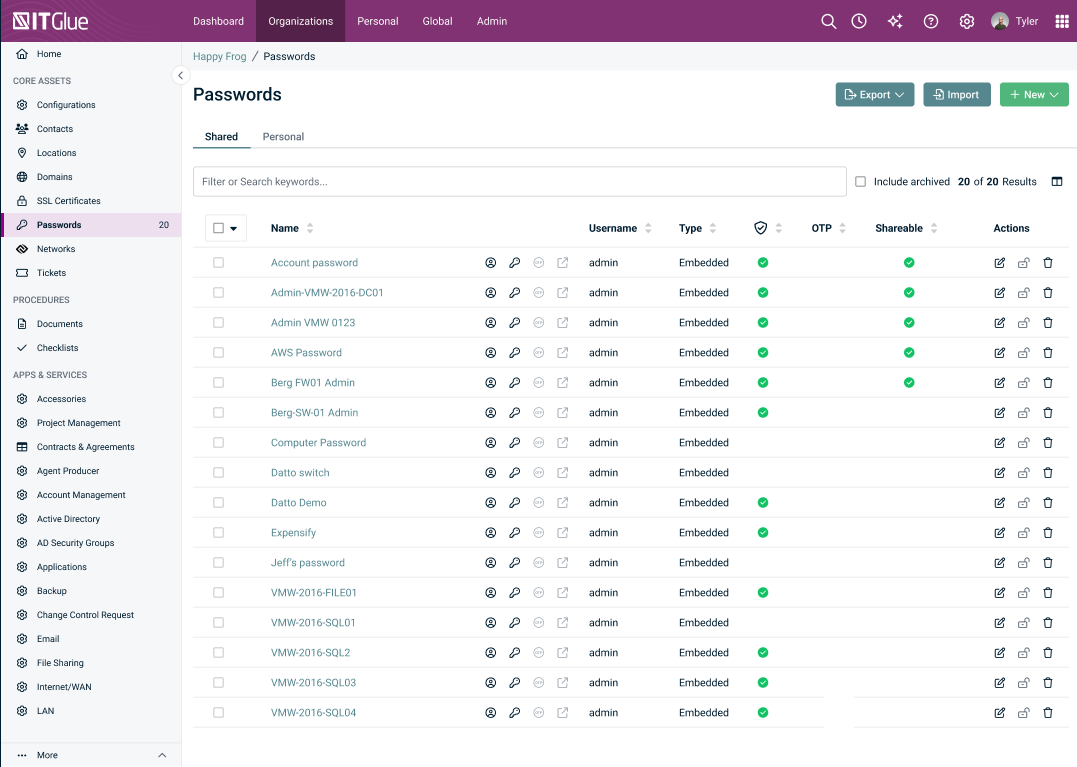
- Navigate to the Passwords list.
- Click a password row to open the asset drawer on the right side of the screen.
Result
The asset drawer opens on the right side of the screen and displays the selected password's name and category at the top, followed by the Details and Supporting information tabs. The drawer remains open as you continue working in the list. Clicking a different password row updates the drawer contents without closing it or reloading the page.
Viewing password details in the drawer
Use the Details tab to review password fields, share a password, or initiate password rotation directly from the drawer.
Procedure
- Open the asset drawer by clicking a password row in the Passwords list.
- Click the Details tab if it is not already active.
- Review the displayed fields. Click the copy icon next to Username or Password to copy those values to your clipboard.
- Click Show Password to reveal the password value, or click Show OTP to reveal the one-time password.
- Click the URL to open it in a new tab.
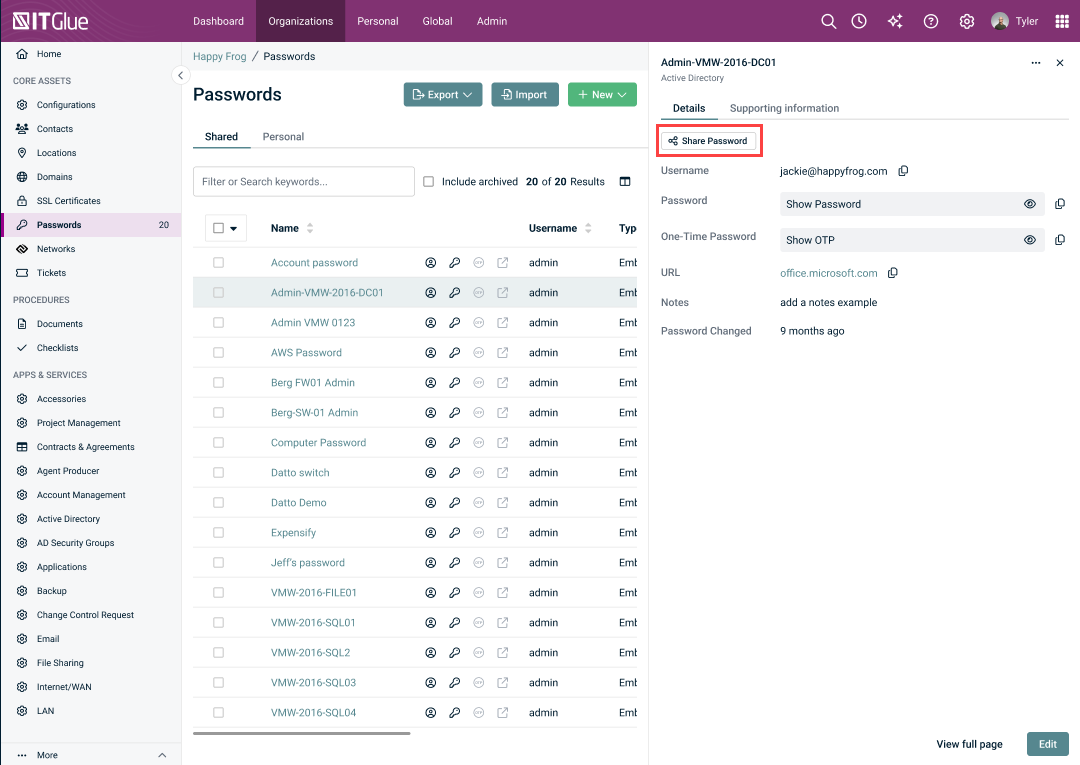
- (Optional) If you have permission to share passwords, scroll to Share Password and follow the sharing prompts. Sharing behavior and logging match the full password page.
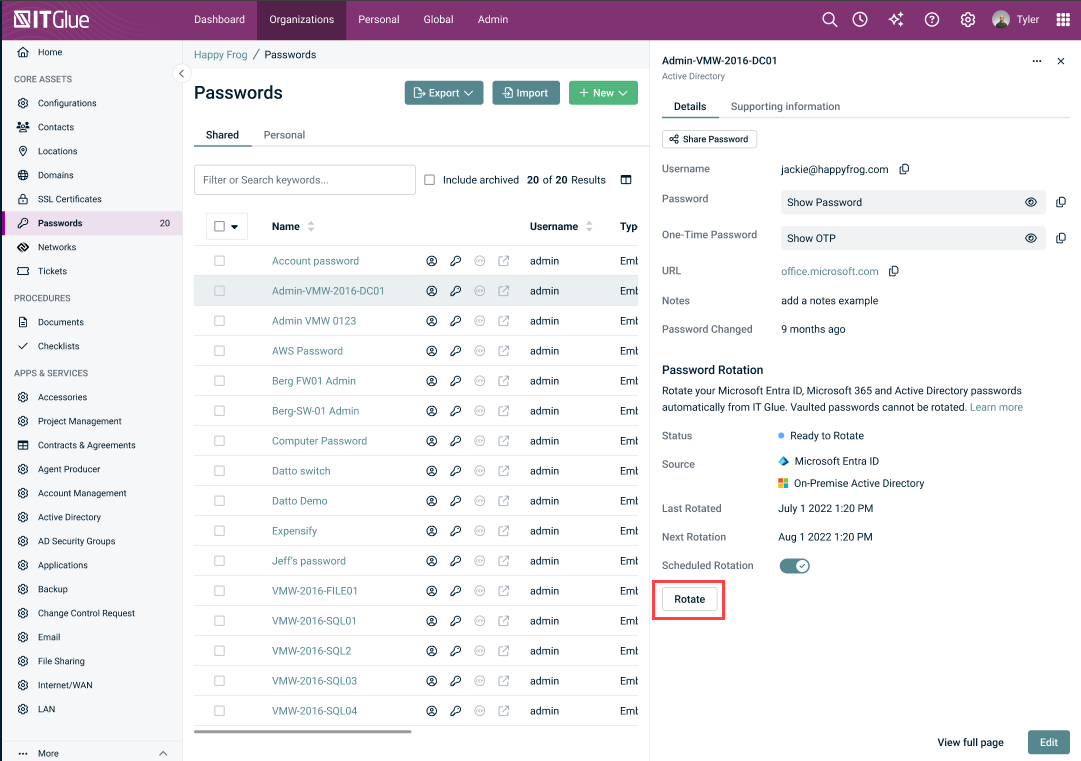
- (Optional) If password rotation is enabled, scroll to Password Rotation to view rotation status and click Rotate to initiate rotation.
Result
You can view, copy, share, and rotate password credentials without leaving the Passwords list. All existing permission, encryption, and audit logging controls remain enforced.
Accessing Supporting information
Use the Supporting information tab to view attachments, related items, revision history, and security information for a password without opening the full asset page.
Procedure
- Open the asset drawer by clicking a password row in the Passwords list.
- Click the Supporting information tab.
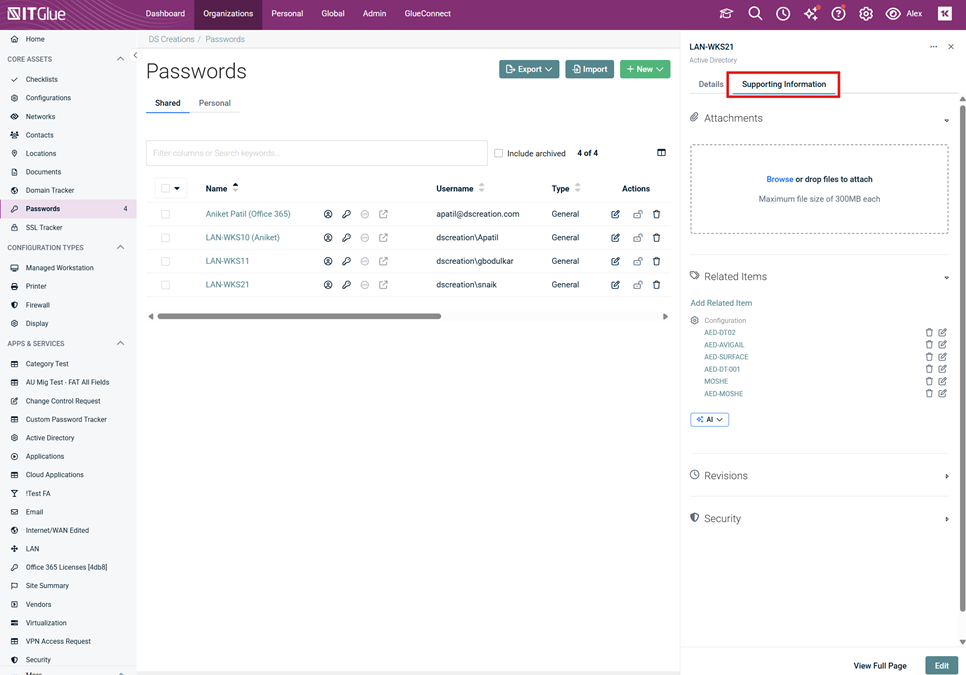
- Click the section you want to expand: Attachments, Related Items, AI, Revisions, or Security.
Result
The selected section expands to display its contents within the drawer, allowing you to review supporting information without navigating away from the Passwords list.
Opening the full password page from the drawer
Navigate from the drawer to the complete password asset page when you need to make edits or access functionality not available in the drawer.
Procedure
- With the asset drawer open, scroll to the bottom of the drawer.
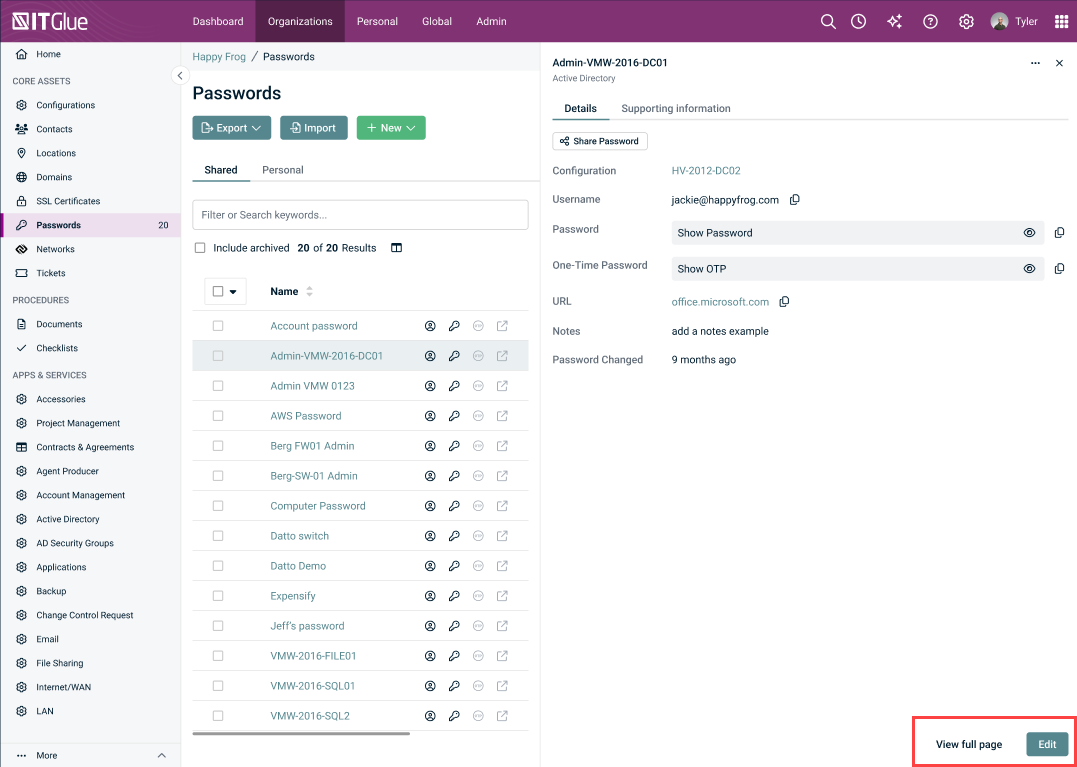
- Click View full page to open the password asset page in read-only view, or click Edit to open it directly in edit mode.
Result
IT Glue opens the full password asset page. To return to the Passwords list and close the drawer, click the browser back button.
Asset drawer layout fields
The asset drawer appears on the right side of the Passwords list page and displays key password information across two tabs.
Drawer header
| Field | Description |
|---|---|
| Password name | The name of the selected password asset, displayed at the top of the drawer. |
| Category | The password category, displayed beneath the password name. |
Details tab fields
| Field | Description |
|---|---|
| Username | The username associated with the password. Includes a copy icon to copy the value to your clipboard. |
| Password | The password value, hidden by default. Click Show Password to reveal it. Includes a copy icon. |
| One-Time Password | The OTP value, hidden by default. Click Show OTP to reveal it. Includes a copy icon. Displayed only when an OTP is configured. |
| URL | The URL associated with the password, displayed as a clickable link that opens in a new tab. |
| Password Changed | The date and time the password was last changed, shown as relative time (for example, "3 days ago"). |
| Notes | Free-text notes associated with the password. Displayed only when notes exist. |
| Configuration | Configuration details for embedded passwords. Displayed only for embedded password assets. |
| Share Password | Controls for generating and managing a shared password link. Displayed only when you have permission to share passwords. Behavior and audit logging match the full password page. |
| Password Rotation | Rotation status, next scheduled rotation date and time, and the Rotate action button. Displayed only when password rotation is enabled and supported for the asset. |
Supporting information tab sections
| Field | Description |
|---|---|
| Attachments | Files attached to the password asset. |
| Related Items | Other IT Glue assets linked to this password. |
| AI | AI-assisted documentation and insights for the password asset. |
| Revisions | A history of changes made to the password asset. |
| Security | Security-related information and access control details for the password asset. |
Drawer footer actions
| Field | Description |
|---|---|
| View full page | Opens the full password asset page in read-only view. |
| Edit | Opens the full password asset page in edit mode. |
Enable Side Panel toggle settings
The Enable Side Panel toggle appears in two locations: the Admin > Settings > Theme tab (global) and User menu > My Settings (personal).
| Field | Description |
|---|---|
| Enable Side Panel (Admin — Theme tab) | Sets the default drawer state for all users in the account. ON by default. Applies to any user who has not set a personal override. |
| Enable Side Panel (My Settings) | Sets a personal preference that overrides the global Admin setting. Once changed, this preference persists across sessions and organizations. Disabled and unavailable for users without password access. |


