IT Glue - Autotask integration: managing inactive organizations and configurations with sync rules
Overview
This feature introduces a dedicated Management tab and configurable Sync Rules for the Autotask integration in IT Glue. Administrators can now automate how organizations and configurations are handled in IT Glue when their corresponding records become Inactive in Autotask. You no longer need to manually manage or unconditionally orphan decommissioned assets, ensuring greater life-cycle control, cleaner documentation, and enhanced data integrity between your PSA (Autotask) and documentation platform (IT Glue).
Prerequisites
- Manager or Administrator role access in IT Glue.
- An active Autotask integration connected and authenticated with IT Glue.
Benefits of this feature:
- Granular life-cycle control: Configure distinct automated behaviors (Orphan, Archive, or maintain linked sync) for inactive organizations and configurations.
- Preserved document and asset relationships: Avoid unintentional data disconnections by preventing unwanted orphaning of inactive assets.
- Streamlined configuration: Set organizational policies once within the integration settings to govern automated cleanup across all recurring sync cycles.
- Enhanced data hygiene and integrity: Automatically archive decommissioned hardware and retired client environments to declutter active search results and documentation views without manual intervention.
How it works
During each sync cycle, IT Glue performs an inactive asset pass that evaluates eligible Autotask assets against the configured Sync Rules. An asset is eligible for inactive evaluation if it already exists in IT Glue, has an established mapping record to an Autotask asset ID, and falls within the active integration sync scope.
Key sync rules and behavior
- Automatic Inactive status: Whenever an Autotask organization or configuration is detected as Inactive in Autotask, its status in IT Glue is always updated to Inactive, regardless of whether additional sync rules are enabled.
- Deterministic rule execution: Rules are processed sequentially:
- Organizations: Check and apply the Orphan rule.
- Configurations: Check and apply the Archive rule first, followed by the Orphan rule.
- Reconnection handling: If an inactive asset was previously marked as orphaned but the Orphan rule is subsequently disabled (or left disabled), future sync passes will clear the orphaned flag and restore the active mapping link while maintaining the Inactive status.
- Orphan exclusion from inactive sync: Assets marked as Orphaned are disconnected from future inactive sync passes to optimize synchronization performance.
Scenarios for inactive organizations and configurations
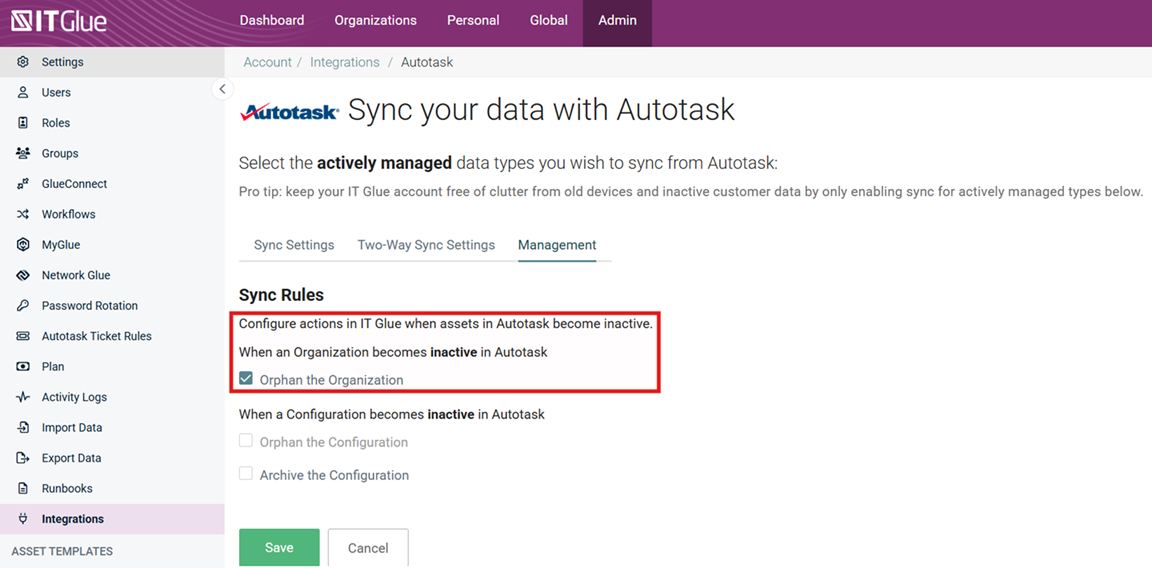
Scenario 1: inactive organization with Orphan the Organization enabled
When an organization in Autotask is set to Inactive and the Organization: Orphan rule is checked:
- The IT Glue organization is marked with status Inactive and flagged as Orphaned.
- The organization is excluded from subsequent inactive sync passes.
Scenario 2: inactive organization with Orphan the Organization disabled (default)
When an organization in Autotask is set to Inactive and the Organization: Orphan rule is unchecked:
- The IT Glue organization is updated with status Inactive but retains an active sync connection.
- Child configurations continue to sync and are evaluated independently according to the Configuration Sync Rules.
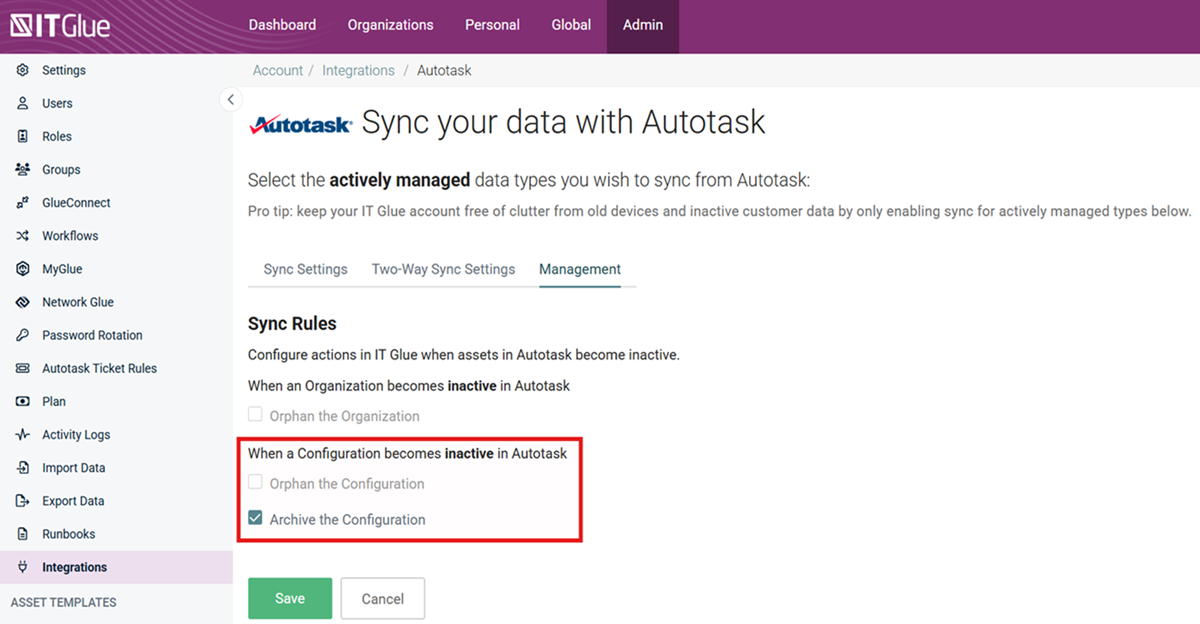
Scenario 3: Inactive configuration with Archive the Configuration enabled only
When an Autotask configuration is set to Inactive, and Configuration: Archive is checked, and Configuration: Orphan is unchecked:
- The configuration status in IT Glue is updated to Inactive.
- The configuration is moved to Archived status in IT Glue.
- The configuration maintains its active mapping link to Autotask for future updates.
Scenario 4: inactive configuration with Archive and Orphan configurations enabled
When an Autotask configuration is set to Inactive and both Archive and Orphan rules are checked:
- The configuration status in IT Glue is updated to Inactive.
- The configuration is moved to Archived status in IT Glue.
- The configuration is flagged as Orphaned, disabling the sync and excluding it from future sync cycles.
Instructions
Step 1: Access Autotask sync settings
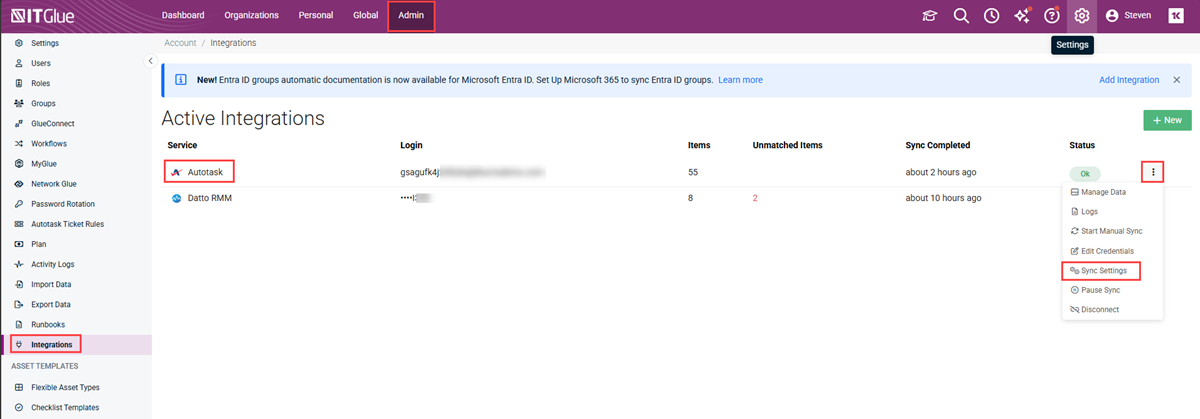
- Navigate to Admin > Integrations.
- Locate the Autotask integration card, click the Actions dropdown menu (three vertical dots or gear icon), and select Sync Settings.
Step 2: Open the sync management tab
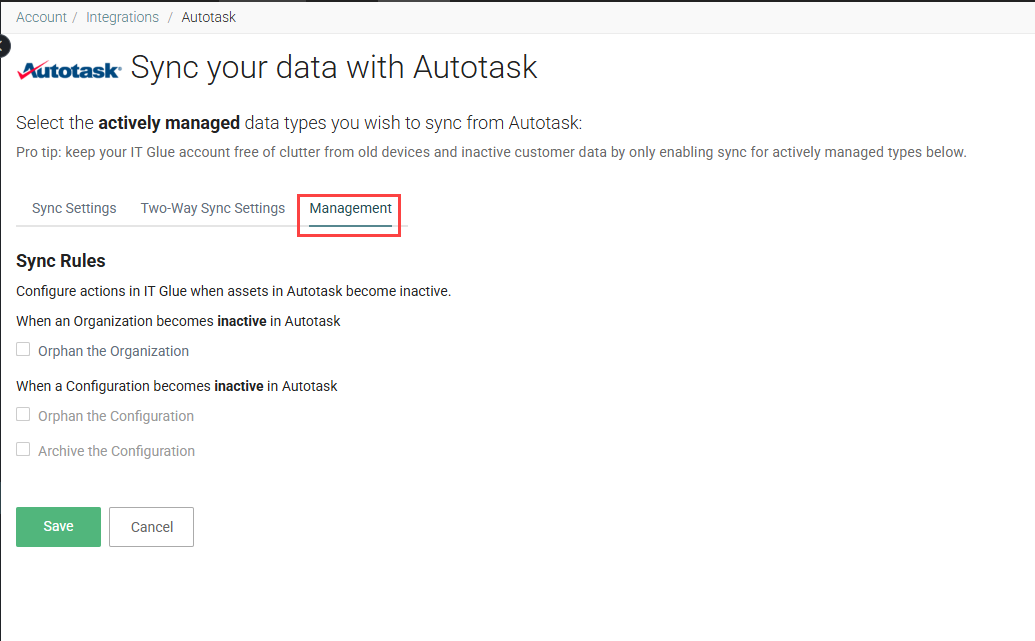
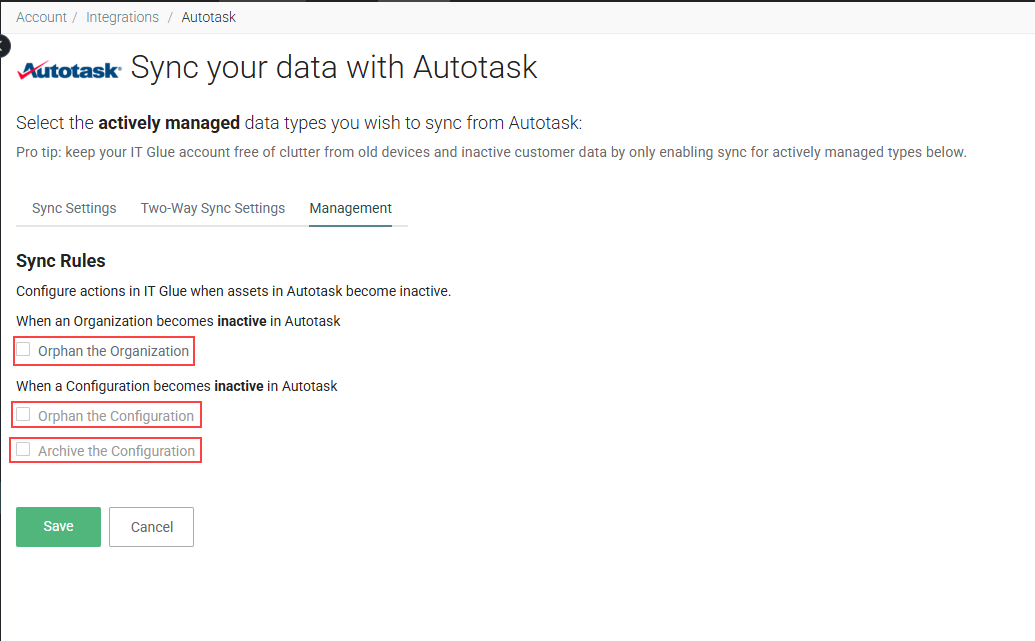
- In the top navigation bar of the sync configuration modal, click the Management tab.
(The modal displays: Sync Settings | Two-Way Sync Settings | Management)
Step 3: Configure organization and configuration sync rules
- Under the Organization Sync Rules section:
- Select the Orphan checkbox if you want Inactive Autotask organizations to automatically unlink and orphan in IT Glue.
- Leave unchecked if you prefer organizations to stay connected with an Inactive status.
- Select the Orphan checkbox if you want Inactive Autotask organizations to automatically unlink and orphan in IT Glue.
- Under the Configuration Sync Rules section:
- Select Archive to automatically archive retired configurations in IT Glue.
- Select Orphan to automatically disconnect retired configurations from Autotask sync.
- (Optional) Select both Archive and Orphan if your policy requires retired hardware to be archived and removed from the sync simultaneously.
- Select Archive to automatically archive retired configurations in IT Glue.
- Click Save.
Step 4: Run synchronization
- Navigate to Admin > Integrations > Autotask > Actions Menu > Start Manual Sync (or allow the next scheduled automatic sync to run).
- Once the sync pass finishes, verify that inactive organizations and configurations in IT Glue reflect the desired Inactive, Archived, or Orphaned states based on your configured sync rules.
Your inactive assets in Autotask will now be managed automatically in IT Glue according to the sync rules you specified.


