Microsoft Integration: Syncing contacts with Autotask
Introduction
This feature allows Microsoft 365 contacts in IT Glue to be automatically pushed and synced into Autotask. You will no longer need to manually edit and save your new Microsoft 365 contacts in IT Glue to have your data flow into Autotask. This ensures data integrity between your core tools: your PSA (Autotask) and IT documentation (IT Glue).
Benefits of this feature include:
- Automated contact workflows: No requirement to manually open and save each individual contact in IT Glue for syncing with Autotask.
- Streamlined configuration: Leverage sync settings in Microsoft 365 and Autotask to automatically set required data for new Autotask contacts.
- Enhanced data integrity: Eliminate manual data entry and maintain consistency across Microsoft 365, IT Glue, and Autotask.
How does it work?
IT Glue pushes Microsoft 365 contacts to Autotask when two-way sync and automatic contact pushing are enabled in your Autotask integration settings.
Key Sync Rules and Email Mapping
- Email Type Mapping: Microsoft 365 imports contacts into IT Glue with the email label defaulted to Email. Because Autotask requires a Work email type for contact syncing, enabling the Enable automatic pushing of Microsoft contacts setting ensures IT Glue uses the primary email address and automatically updates the email type to Work during the sync to Autotask.
- Organization Requirements: Contacts will only push to Autotask if the associated IT Glue organization has its Status set to
Synced - Activeand its Organization Type matches one of the types enabled in your Autotask sync settings (e.g., Customer or Partner). - Organization Matching: For new Microsoft 365 tenants, you must first match or create the organization under Admin > Integrations > Microsoft 365 > Matching.
Scenarios for Contact Creation & Updates
Scenario 1: Brand New Contact
The Microsoft 365 contact data does not match an existing Autotask contact.
- A brand-new IT Glue contact is created from Microsoft 365 data and automatically pushed on the fly to Autotask.
Scenario 2: Existing Unsynced Contact
A match is found in IT Glue, but the contact does not yet have active Autotask sync controls at the bottom of the contact details page (e.g., missing "Manage | Sync now | Disable sync with Autotask").
- The existing IT Glue contact is updated with Microsoft 365 data and automatically pushed/linked to Autotask.
Scenario 3: Already Synced Contact
- If sync controls for Autotask are already present at the bottom of the contact details page, standard two-way sync rules apply.
IMPORTANT Ensure your Autotask contacts are already synced into IT Glue before enabling this feature. If contacts present in Autotask have not reached IT Glue, IT Glue cannot detect that the contact already exists in Autotask prior to auto-pushing, which could result in duplicate contacts.
Prerequisites
- Manager or Administrator role access in IT Glue.
- An active Autotask integration with Two-Way Sync and Contact Sync enabled.
- An active Microsoft 365 integration in IT Glue.
Instructions
Step 1: Configure Autotask Two-Way Sync Settings
- Navigate to Admin > Integrations > Autotask > Actions Menu > Sync Settings.
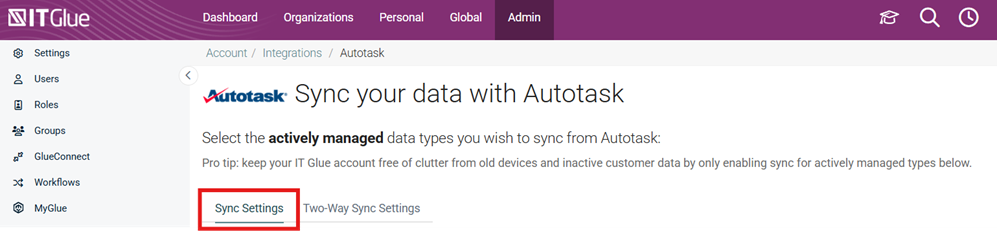
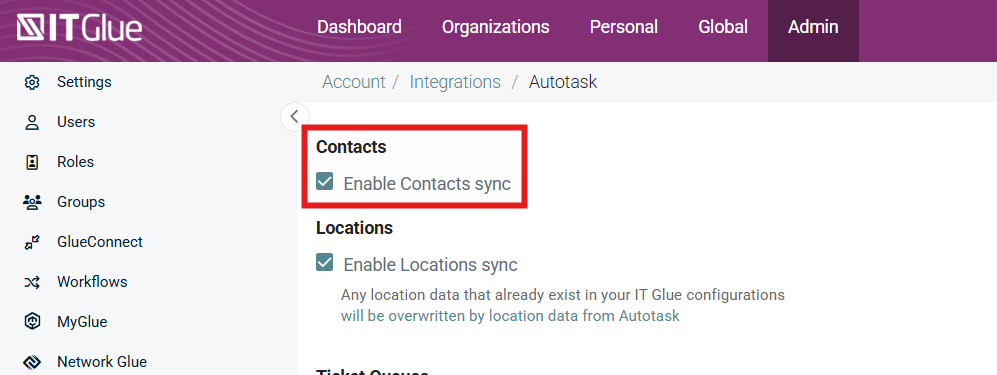
- In the Sync Settings tab, ensure the Enable Contact sync checkbox is selected.
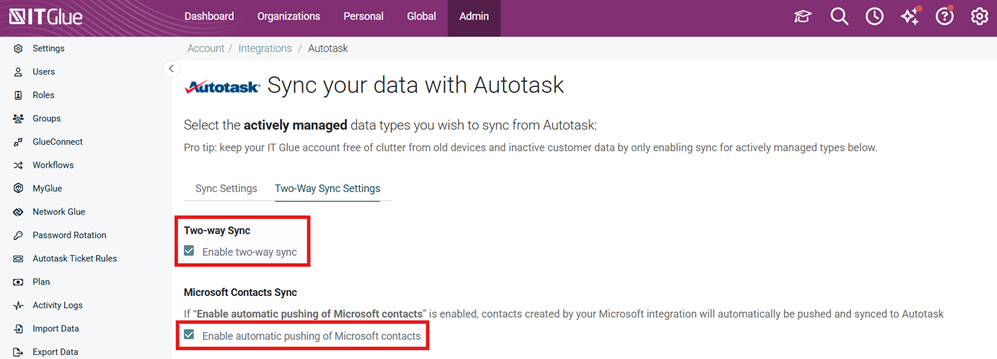
- Click the Two-Way Sync Settings tab.
- Select the Enable two-way sync checkbox.
- Under the Microsoft Contacts Sync section, select the Enable automatic pushing of Microsoft contacts checkbox.
- Click Save.
Step 2: Match Organizations and Validate Organization Status
- Navigate to Admin > Integrations > Microsoft 365 > Actions Menu > Matching > Matched.
- Ensure your Microsoft 365 tenant(s) are matched to an IT Glue organization.
- Open the matched organization in IT Glue and confirm:
Status: Set to
Synced - Active.Type: Set to a type enabled in your Autotask sync settings (e.g., Customer or Partner).
Step 3: Run Synchronization
- Navigate to Admin > Integrations > Microsoft 365 > Actions Menu > Start Manual Sync (or wait for the next scheduled automatic sync).
- Once the sync completes, contacts imported from Microsoft 365 will automatically flow into IT Glue and push directly into Autotask.
Your new contacts from Office 365 will flow into IT Glue and then push into Autotask, based on the sync settings you specified in Office 365 and Autotask.


