Kaseya Assist
Overview
Kaseya Assist is an integrated, LLM‑powered GenAI assistant embedded directly inside IT Glue that answers document and common product‑specific questions. Kaseya Assist performs AI‑assisted searches so MSP technicians can find the right information and act faster when troubleshooting end-user issues. Product-related responses will be generated based on curated content from IT Glue's Knowledge Base (KB), ensuring relevance and accuracy.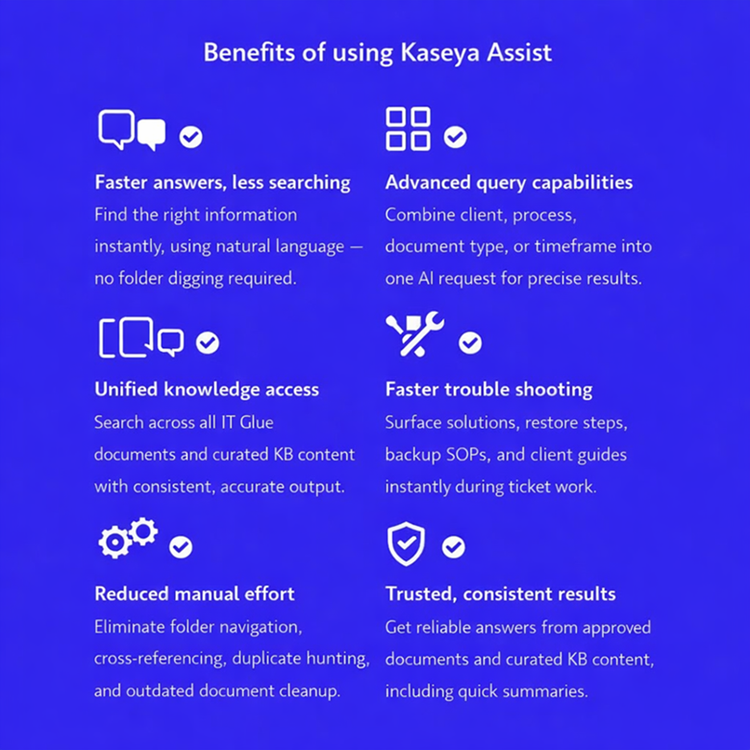
Prerequisites
-
You must have Administrator, Manager, Creator, or Editor access to IT Glue to use Kaseya Assist.
Configuring Kaseya Assist
NOTE Only Administrators or Managers can enable or disable Kaseya Assist settings.
These instructions will walk you through the steps to configure Kaseya Assist.
-
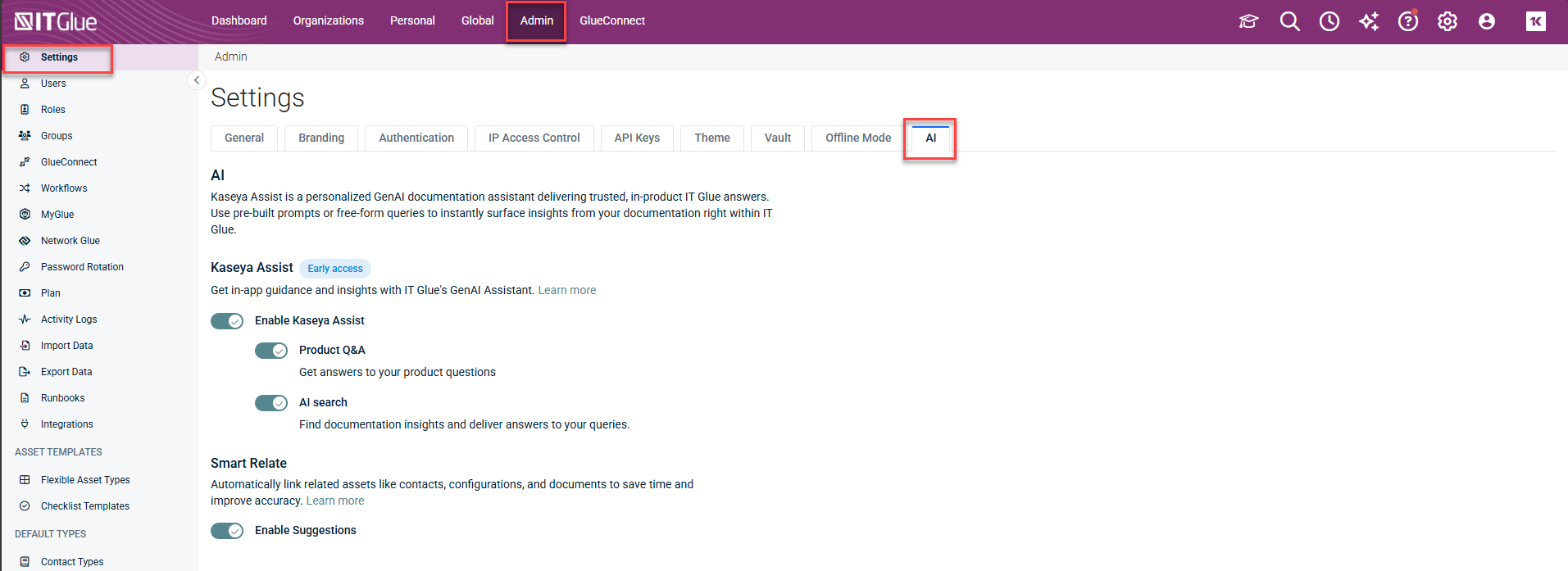
From the top navigation menu, click Admin. On the Setting page, click the AI tab.
-
The following settings are enabled by default for users in North America:
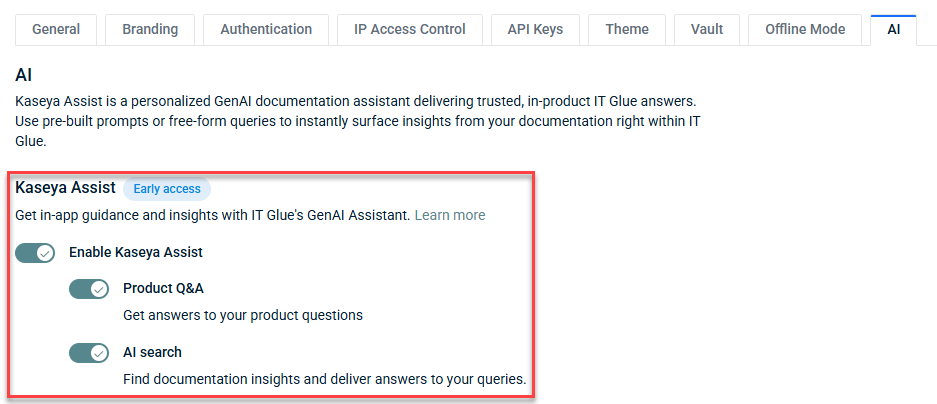
IMPORTANT For users in Europe and Australia, Kaseya Assist may not be enabled by default depending on regional regulations. If Kaseya Assist is not enabled, you will not have the option to select Kaseya Assist from the AI drop-down menu until it is enabled.
-
You can individually configure Kaseya Assist to quickly find relevant IT Glue content, such as:
-
Product Q&A: Get product-related responses generated based on curated content from IT Glue's Knowledge Base (KB), ensuring relevance and accuracy.
-
Commonly asked product questions:
- How can I reset my password?
- How can I reset my MFA?
- How can I generate a runbook?
- How can I move or copy a document?
- Can I resend an invitation?
- Do I need to install the collector within each subnet?
- How do I change my email address?
- How can I delete orphaned assets?
- I am unable to import a document, what is the file size limitation in IT Glue?
-
AI search: Search documents and reduce time spent versus manual search queries.
Common AI search queries:
- When onboarding a new user, I want to search for a related document created in IT Glue:
- Where is the Office 365 onboarding document?
- Find me a setup guide.
- Installation of new applications:
- Find me an install document for application X.
- When troubleshooting a user’s issue and searching for a relevant document in IT Glue:
- Show me the server restore procedure.
- Show the backup restoration SOP for client XYZ.
- Find an internal SOP or policy for a situation that is being dealt with.
- When an end user forgets a password, is locked out, or offboarding an employee, or suspicious activity is identified, then a technician may look for:
- Find the "password reset guide” among IT Glue documents they have created.
- Document hygiene:
- Find documents that have not been updated for the last xx days.
- Find document duplicates:
- Because there are multiple technicians working for the same MSPs, document duplicates are a frequent issue.
- When offboarding an organization:
- An MSP technician is required to do a cleanup and delete all documents (and other assets) related to that organization.
- When onboarding a new user, I want to search for a related document created in IT Glue:
-
Getting started using Kaseya Assist
You can use Kaseya Assist to get fast, up-to-date answers to most of your IT Glue questions.
-
Click the AI icon on the top right of the Settings page and select Kaseya Assist from the drop-down menu or use the keyboard shortcut (Ctrl, .) to trigger the chat:
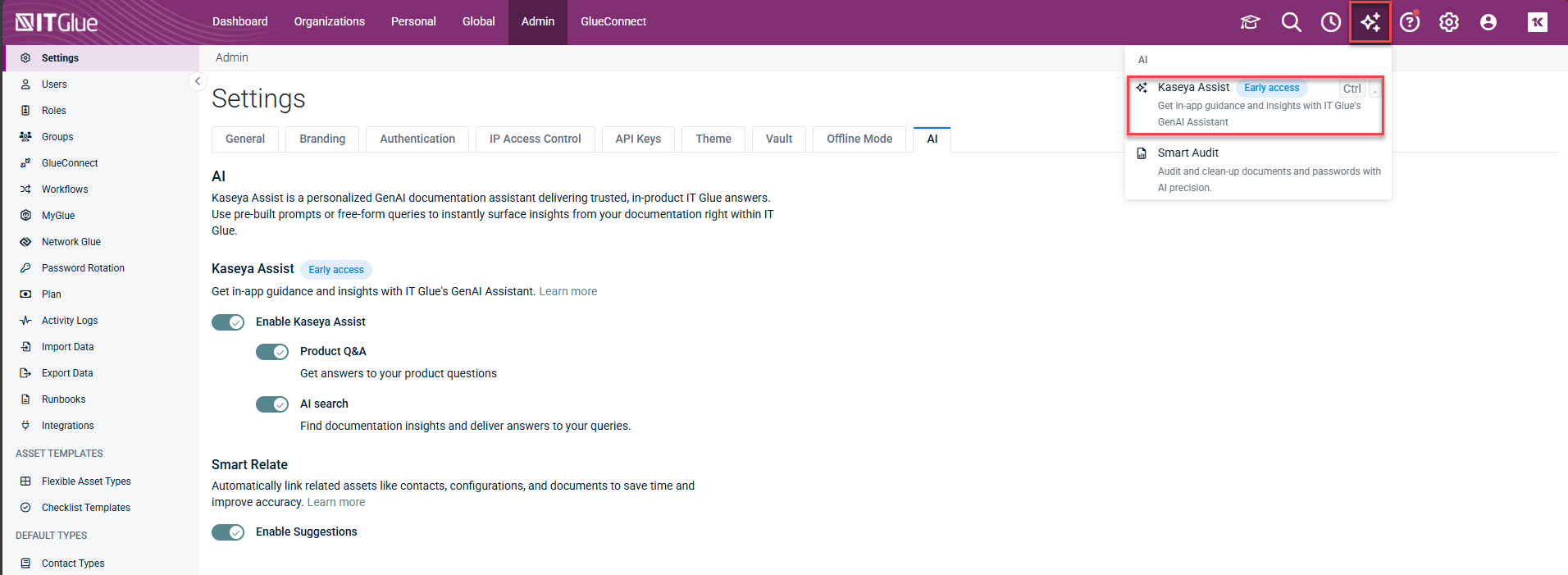
Selecting a suggestion using prebuilt prompts
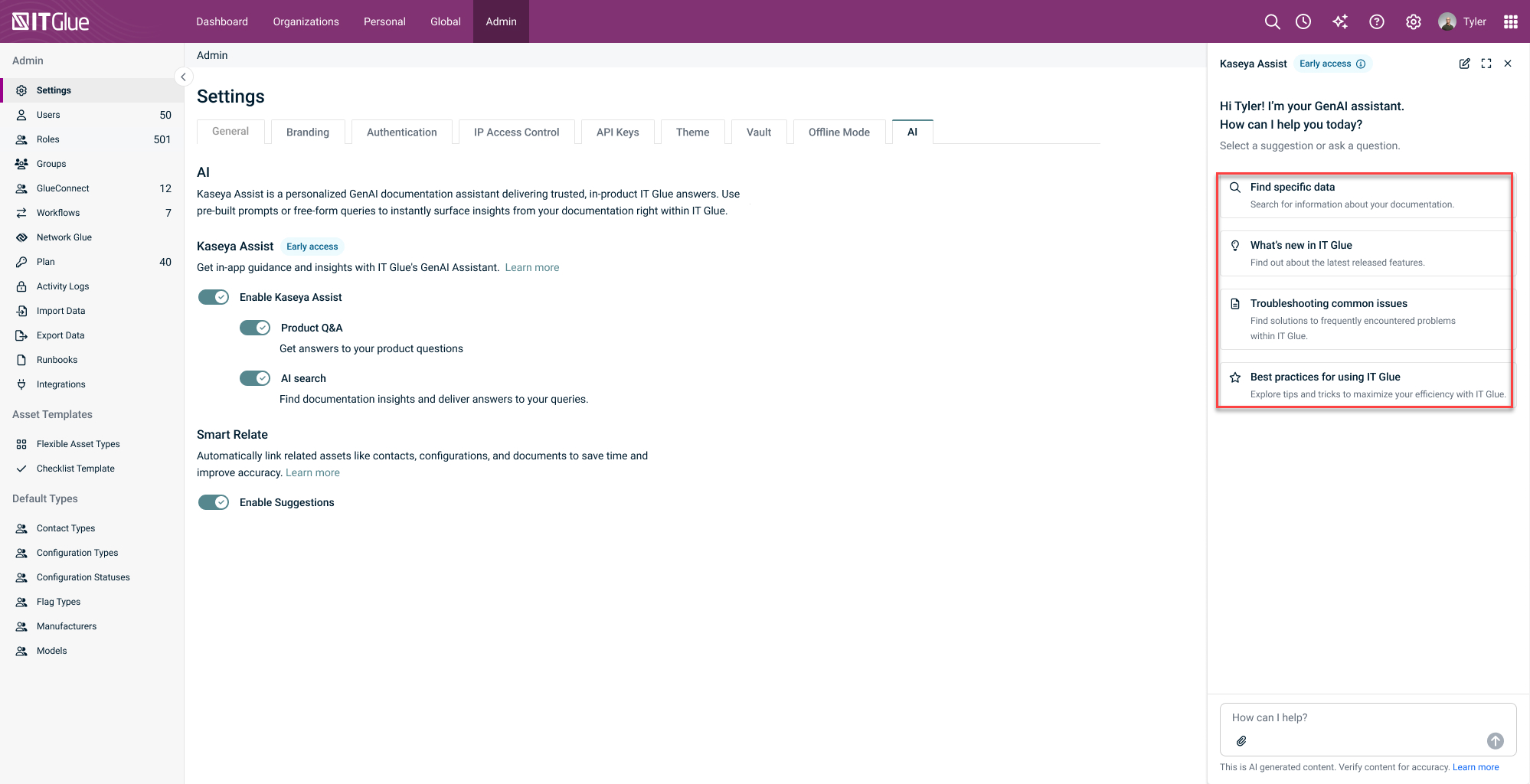
You can select from four prebuilt prompts:
- Find specific data: Search for information about your documents.
- What's new in IT Glue: Find out about newly released features.
- Troubleshooting common issues: Find solutions to frequently encountered problems within IT Glue.
- Best practices for using IT Glue: Explore tips and tricks to maximize your efficiency with IT Glue.
Asking Kaseya Assist a question
You can ask Kaseya Assist specific questions about documents you have created in IT Glue. Our AI engine will find all documents matching your search criteria.
When it comes to basic product-related questions, Kaseya Assist will search the entire catalog of IT Glue knowledge base articles to provide you with the best answers to your questions.
IMPORTANT When asking Kaseya Assist a question, regardless of whether it is an initial query or a follow-up, it is critical to provide prompts that are as specific and detailed as possible. Doing so will guide the LLM toward providing you with the most relevant content, improve accuracy and the overall usefulness of the generated output.
NOTE Kaseya Assist chat messages are available for 24 hours, after which they are automatically removed.
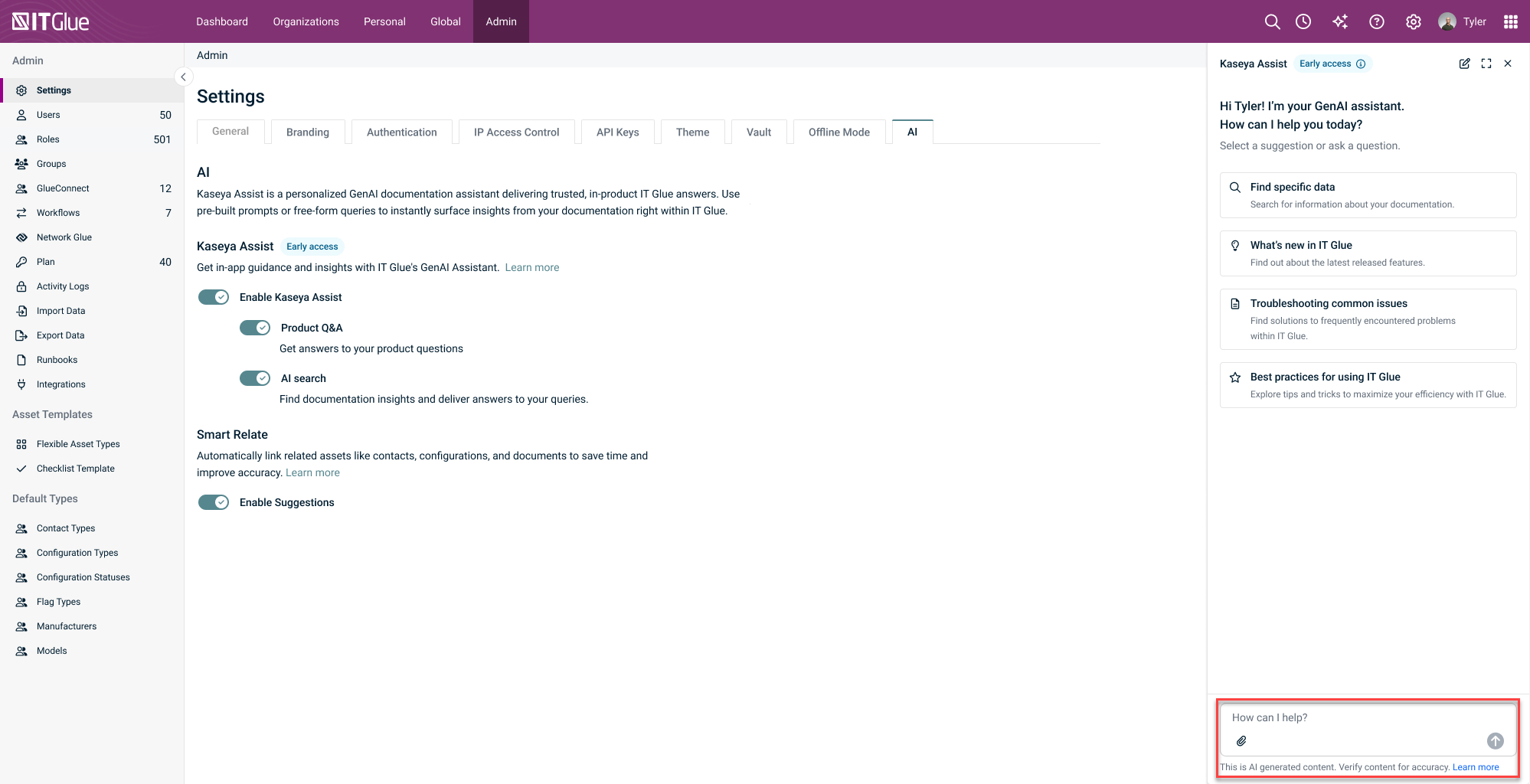
Attaching files
When using Kaseya Assist, you can add up to five attachments in PNG or JPEG format only.
NOTE PDF documents cannot be attached at this time.
Finding documents using Kaseya Assist
Kaseya Assist delivers the most accurate document search results when queries clearly describe what you are looking for. Searches can be progressively refined using four core dimensions, referred to as the four “w’s,” which map directly to common document metadata fields.
NOTE Kaseya Assist can help you find documents in IT Glue by searching by name, type, organization, owner, or dates created or updated.
NOTE This is an Early Access phase of Kaseya Assist. At this time the Gen AI assistant will be able to find 50 documents matching the search criteria. Then a user is expected to narrow their search. In the future, it will be extended to all documents Kaseya Assist managed to find in a user's account.
The four w's you can use in searches
| Dimension | What it refers to | Example use |
|---|---|---|
|
Where |
Organization or folder the document belongs to |
Documents in a specific organization or folder:
|
|
What |
Document name or title (partial or exact) |
Documents by title:
|
|
Who |
Document creator or last editor |
Documents updated by a specific person:
|
|
When |
Created or last updated time frame |
Documents updated last week or created in a certain month:
|
Example Searches
Basic search (What)
- Find me documents titled "VPN setup."
Add Where
- Find VPN setup documents in organization “Contoso.”
Add Who
- Find documents titled "VPN setup" in organization “Contoso” updated by “John Smith.”
Use exact document name
- Find documents named “VPN Setup Guide.”
Combine multiple W’s
- Find documents named “VPN Setup Guide” in organization “Contoso” updated by “John Smith.”
Add When
- Find onboarding documents in organization “Contoso” updated in March 2026.
TIP
- Use quotation marks for exact matches (document names, organizations, folders, or people).
- Be clear about what each part of the search refers to.
- Add details gradually rather than all at once.
If you don't see results
Your search may be too specific. Try removing one detail at a time, starting with:
- Exact title in quotes
- Person (Who)
- Location (Where)
Refining your searches
Search refinement in Kaseya Assist allows you to progressively narrow results by stacking filters across common document fields such as, title, organization, folder, ownership, and dates. The examples below illustrate how additional context improves relevance.
Here is a general search for onboarding documents that returned 50 results across organizations and folders related to onboarding.
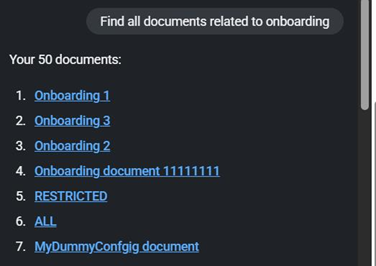
If you want to prioritize documents with a name like "onboarding," and you are aware of the specific organization(s) where this document may be located, you can refine your search as follows: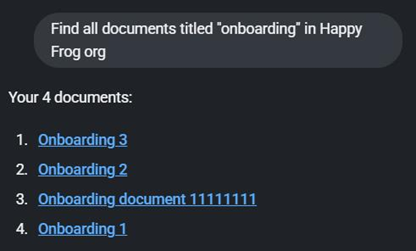
Similarly, you can combine filters across title, organization, folder name, created and updated at, created and updated by.
For example, you can try filtering by exact document name and org.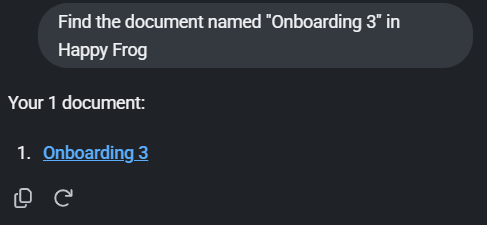
By partial name and updated by at: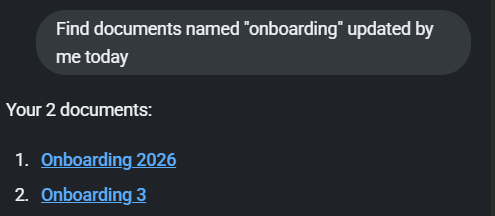
By partial name and folder: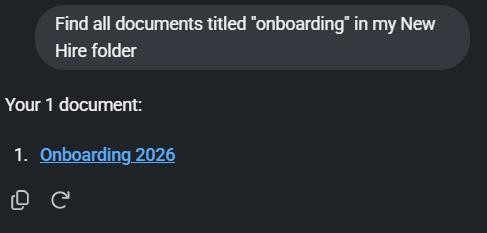
By partial name, org, and created or edited by: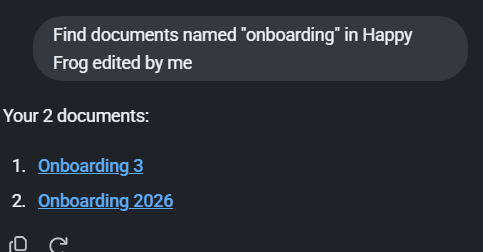
Quota and file size limits
Kaseya Assist has the following limitations per session:
- You can send up to 15 messages. However, if there are 10 users per account, the quota will be 15 messages per user for a total of 150 messages.
- Message quotas are per user, per 24-hour period.
- Each message is limited to 1,000 characters.
- Attached files are limited up to 5 MB each in PNG or JPEG format only.
Error states
The following table describes the error states that you may encounter in Kaseya Assist and the corresponding UI behavior.
| Scenario | Message text |
|---|---|
| Attachment processing failure | "Failed to process. Please try again." |
|
API failure |
"Kaseya Assist couldn’t process your request. Please try again later." |
| Azure timeout error | "Kaseya Assist couldn’t process your request. Please try again later." |
| Response generation failure: LLM returns no response, or an invalid or nonsensical response. | "Unable to generate a response. Please rephrase your question." |
| WebSocket connection failure during an active session | "Kaseya Assist couldn’t connect. Please try again." |
| User opens Kaseya Assist after a connection error | "Connection error. Kaseya Assist couldn’t connect. Please try again." |
| Connection errors during an active chat: cable disconnect, channel connection failure, or history sync issues | "Kaseya Assist couldn’t connect. Please try again." |
| User opens a chat and attempts to send a message after a connection error has already occurred | "Connection error. Kaseya Assist couldn’t connect. Please try again." |
| Message send failure | "Failed to send. Please try again." |
| Message exceeds 1,000 characters | "Character limit exceeded." |
| Kaseya Assist disabled by an administrator | "Kaseya Assist disabled by administrator." |
| Daily message quota reached | "Daily message limit reached. Your limit resets tomorrow at < specific time >." |
| RPM (Requests Per Minute) limit reached | "Kaseya Assist is busy processing a high volume of messages. Please try again later." |
Share feedback or report issues
Submit feedback or ideas, or report unexpected behavior directly to our product team:
Feedback form - IT Glue Kaseya Assist Early Access Feedback Form.
Talk directly with the Product team
Book time with the product team to discuss your workflows, ask questions, or review upcoming capabilities:
Schedule a 1:1 with Product - Schedule through Calendly.
Kaseya Assist FAQs
 AI and LLM Usage and Training
Where is the data processed by Kaseya Assist going?
- Kaseya Assist is leveraging Microsoft Azure OpenAI Service as a sub-processor for GenAI/LLM functionality.
- Refer to Data, privacy, and security for Azure OpenAI Service for more information.
Is Kaseya Assist related to or leveraging Microsoft Copilot?
- No, Kaseya Assist is independent of Microsoft Copilot.
Is Kaseya Assist using my data to train an AI model?
- No, when using Kaseya Assist, Microsoft has confirmed with Kaseya that your data is not used to train an AI model (LLM). They are trained on knowledge base articles only.
Can anyone train the AI Model (LLM) used by Kaseya Assist?
- No, IT Glue does not allow any LLM training through its AI features.
What is my usage limit for Kaseya Assist?
- There’s no set restriction for using the Kaseya AI features other than those specified in the Quota and file size limits section. There is a system in place to detect and prevent abuse of these features. If your usage triggers this system, you will be sent a warning email and your access to the feature usage may be suspended or terminated.
Can I customize the AI model to meet my business needs?
- All updates and changes to Kaseya Assist are made based on community feedback, at the discretion of Kaseya’s Product Team.
- All settings on Kaseya Assist functionality are IT Glue-dependent.
- No adjustments to the AI LLM are available.
How frequently is Kaseya Assist updated/improved?
- IT Glue plans to continue deploying and iterating on AI-based features and improvements on a quarterly basis.
Infrastructure and Geographical Zoning
Does Kaseya maintain the infrastructure that enables Kaseya AI?
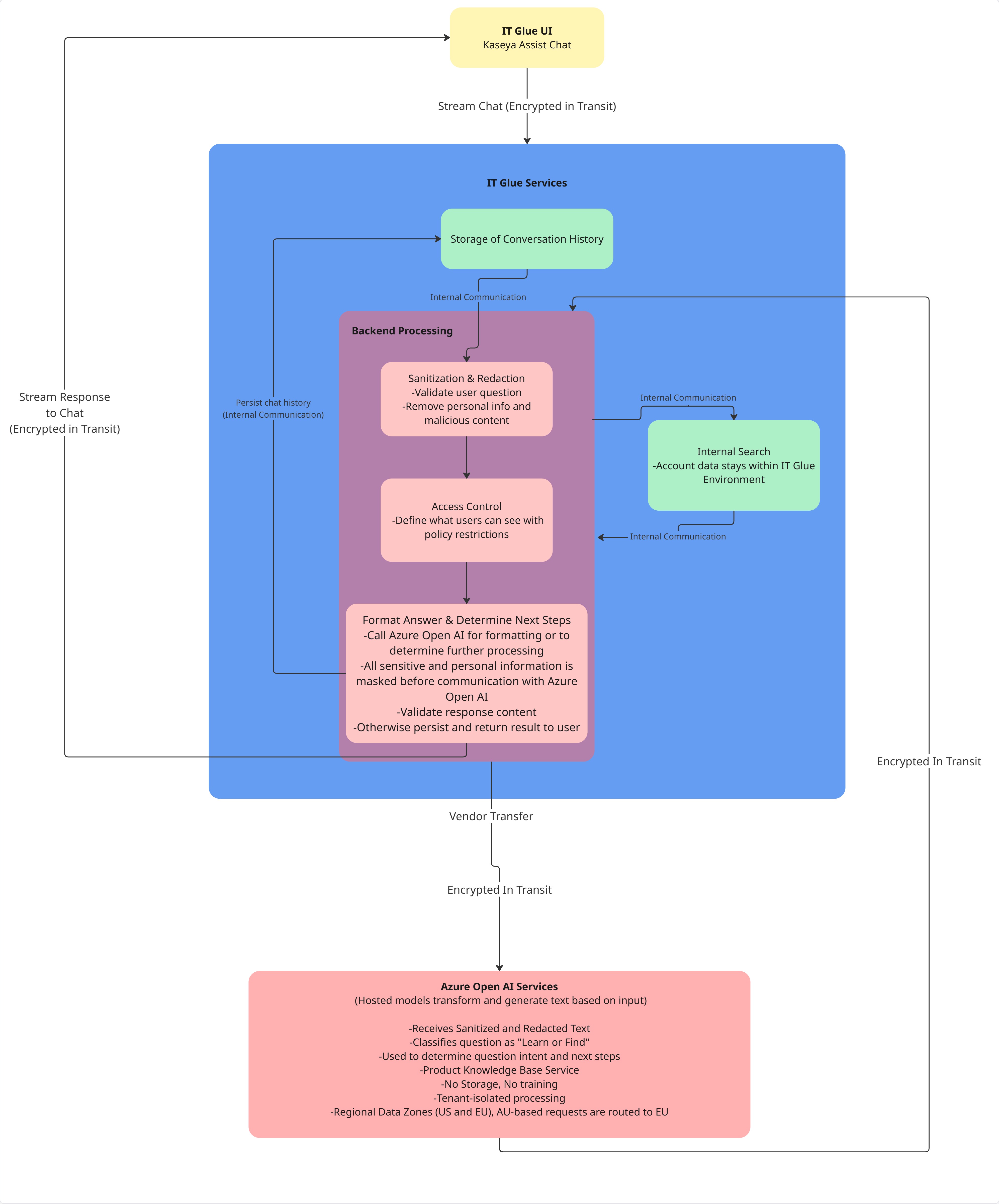
- All requests are sent from the IT Glue tenant into Kaseya Assist, which then interacts with Microsoft Azure OpenAI Service.
- Refer to Data Exchange Diagrams for more information.
Does all data remain in my geographical zones?
- Kaseya Assist uses a Data Zone Standard to ensure prompts and responses remain within your geographical area.
- For geographical zone standards by Microsoft, refer to Data zone standard model availability.
- Azure OpenAI currently hosts the models in two different Data Zones: the European Union, and the United States. The models will be deployed to both zones and user requests will be routed to the appropriate data zone for processing.
- AU requests will be routed to the EU. Here's the Microsoft documentation on the deployments: Understanding deployment types in Microsoft Foundry Models - Microsoft Foundry.
- Each account is assigned to a specific region (NA, EU, AU) on account creation. This is what is used to identify an account's "location" when it comes to automatically toggling the settings for Kaseya Assist as well.
- If an IT Glue account is migrated across regions, then the region is properly updated, and the account would then be officially categorized by this new region. From a privacy and data protection perspective (e.g., GDPR), the data is processed in the geographic location where the tenant is officially registered. For example, if an EU customer travels to the US and logs in to IT Glue, the data will still be processed in the customer's EU tenant.
How does Kaseya Assist integrate with AI?
- Kaseya Assist is powered by Microsoft Azure OpenAI and integrates with the service through secure API-based communication. When you submit a request (aka message), IT Glue sends the prompt to the AI model and combines the response with relevant IT Glue data and permissions to provide accurate, context-aware assistance.
Where is the Kaseya Assist AI Response Data being stored?
- Refer to Data Exchange Diagrams for more information.
- Kaseya Assist receives user input prompts and outputs an AI-processed response from Azure OpenAI Service. This output response is stored in IT Glue.
Security Practices
Who has access to the data processed by Kaseya Assist AI?
- Kaseya, and you, but only with respect to your own company’s processed data.
What Security Measures are in place for Kaseya Assist? (e.g., data encryption, access controls, etc.)
- All communication between IT Glue and Azure is protected using TLS 1.2 transport encryption and logically isolated within a secure compute perimeter so that each request has exclusive use of allocated resources to prevent any data leakage between tenants. The models used by IT Glue are stateless, and no prompts or generations are stored or used to train, retrain, or improve the base models.
- Access control mechanisms are in place to ensure only authorized use of model endpoints are permitted using Azure AD (Microsoft Entra ID) authenticated credentials.
-
For Data management practices by Azure OpenAI (LLM), refer to Data, privacy, and security for Azure OpenAI Service.
Does Kaseya AI process or analyze any of the following data types?
- Kaseya Assist processes user-provided inputs to generate responses, but this data is redacted and assessed for relevance, and this data is not stored by the model or used to train models.
-
IT Glue has no control over the personal information that you store in your account, for example, Personally Identifiable Information (PII), health information, and any other type of personal data. However, If your request to Kaseya Assist contains critical PII, such as the examples below, these requests will automatically have PII information redacted and may be blocked for malicious content or irrelevance:
- Passwords and API keys
- Credit card information
- Social Security information
- Email addresses
- Phone numbers
How does Kaseya AI mitigate bias results?
- Kaseya Assist relies on Microsoft Azure OpenAI’s practices to mitigate bias and otherwise filter content appropriately.
- For information regarding the multiple strategies that Microsoft uses to reduce bias and harmful content in model outputs, refer to Content filtering overview.
How does Kaseya AI avoid Data Poisoning?
- Kaseya Assist does not allow training in Azure OpenAI LLMs, aimed at avoiding Data Poisoning risks.
- Azure OpenAI follows several security practices to mitigate Data Poisoning, refer to Securing the Future of Artificial Intelligence and Machine Learning at Microsoft.
Data Exchange Diagrams
IT Glue and Azure Open AI LLMs Data Exchange Flow Chart