Troubleshooting MFA login
The following tips will help you troubleshoot a login issue when you use IT Glue's multi-factor authentication (MFA) solution.
NOTE If your administrator has turned on enforced MFA, you will be required to enable MFA even if you previously logged in without it.
To log in with IT Glue MFA, you need three separate pieces of information:
- Your username
- Your password
- A numeric code generated by an authenticator app on your mobile phone
How do I log in without my phone?
If you forgot to bring your mobile device with you to work or the battery is depleted, you can use your one-time recovery code instead of the code generated by the authenticator app. The recovery code looks something like:
3aa7d3d1776f71d5
You will need to enter your recovery code into the MFA Code field when you log in. The recovery code can only be used once.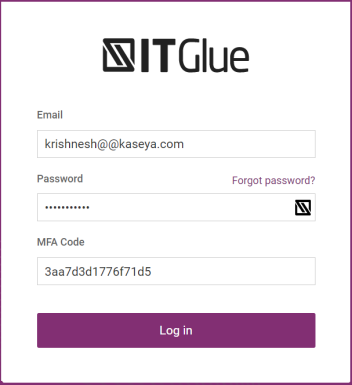
IT Glue will not disable MFA after you log in, so if you need to log in again without your mobile device, you have two options:
- Navigate to the Edit Profile screen and generate a new recovery code to store in a secure place for later use.
- Alternatively, you can disable MFA from your profile only if MFA is not enforced on your IT Glue account. Enforced MFA is when all users of the account are required to enable MFA. If MFA is enforced, you will be forced to set up MFA at your next log in.
If you don't do one of these two options, and then you log out of your account, you won't be able to log in again.
How do I reset my MFA?
Follow these instructions if you need to reset your MFA for any reason (e.g. to replace or factory reset your mobile device). After it is reset, you can enable your MFA again.
You have a recovery code
Enter your recovery code into the MFA Code field when you log in and then reset your MFA by disabling and re-enabling it in your profile. Set up MFA access again by scanning the QR code, and then make sure you save a new recovery code for future use.
You don't have a recovery code
An Administrator can reset your MFA:
- Under Account > Users, click the pencil icon next to the user on the far right.
- On the Edit User screen, click the Reset MFA link to immediately reset the user's MFA. The user will be prompted to re-enable MFA again when they log in.
Or, see Recovering a lost MFA code for an Administrator if you are the only Administrator on your account.
I am having MFA login errors / codes aren't working.
Ensure your device time is synced with internet time. You can do this by disabling and re-enabling automatic time on your device:
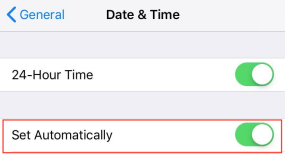
- For an iOS device, navigate to Settings > General > Date & Time.
- Tap to toggle the Set Automatically switch to off. Wait a few seconds and toggle it back on.
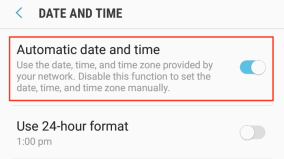
- For an Android device, tap Settings, enter Date and time in the Search Settings bar, and then open Date and Time settings.
- Tap to toggle the Automatic date and time switch to off. Wait a few seconds and toggle it back on.
-
Continue to log in to IT Glue.
Why am I not being prompted for an MFA code?
If you are no longer seeing the MFA prompt when you log in to IT Glue, one of the following reasons is most likely the cause.
You are logging in via your organization's SSO subdomain
When you navigate to yoursubdomain.itglue.com, IT Glue redirects you to your organization's SSO provider (for example, Azure AD or Okta) for authentication. After your initial MFA setup is completed, subsequent logins via this SSO subdomain URL will not prompt for IT Glue MFA. Your SSO provider handles authentication, and you will not be asked to enter an IT Glue MFA code.
IT Glue MFA is only requested when you log in directly via:
- app.itglue.com
- app.eu.itglue.com (EMEA customers)
- app.au.itglue.com (AU customers)
If you recently switched from using app.itglue.com to a custom subdomain URL, this explains why the MFA prompt has disappeared.
TIP If your SSO provider is unavailable, you can always fall back to logging in directly at app.itglue.com using your IT Glue credentials and MFA code.
An administrator has reset your MFA
An administrator may have reset your MFA from the Admin > Users screen. When this happens, your previous MFA configuration is removed and you will no longer be prompted for an MFA code on your next login. You will be guided through the MFA setup flow again to register a new authenticator app.
If you suspect this is the case, contact your IT Glue administrator to confirm, and then follow the instructions in Set up multi-factor authentication (MFA) to re-enable MFA on your account.
Your browser session is still active
If you did not fully log out of IT Glue before closing your browser, an active session cookie may still be present. As a result, IT Glue may let you back in without re-prompting for credentials or MFA.
To test this:
- Fully log out of IT Glue using the Sign Out option.
- Open a new private or incognito browser window.
- Navigate to app.itglue.com and log in with your IT Glue credentials.
If MFA is correctly configured on your account, you should be prompted for your MFA code.
MFA has been disabled on your account
If MFA enforcement is not enabled for your organization, it is possible that MFA was manually disabled on your user profile. To check:
- Log in to IT Glue and navigate to your Edit Profile screen.
- Confirm whether MFA is currently enabled.
- If it is disabled and you wish to re-enable it, follow the instructions in Set up multi-factor authentication (MFA).
NOTE If your administrator has turned on enforced MFA, you will be required to enable MFA and will not have the option to disable it.
Related articles


